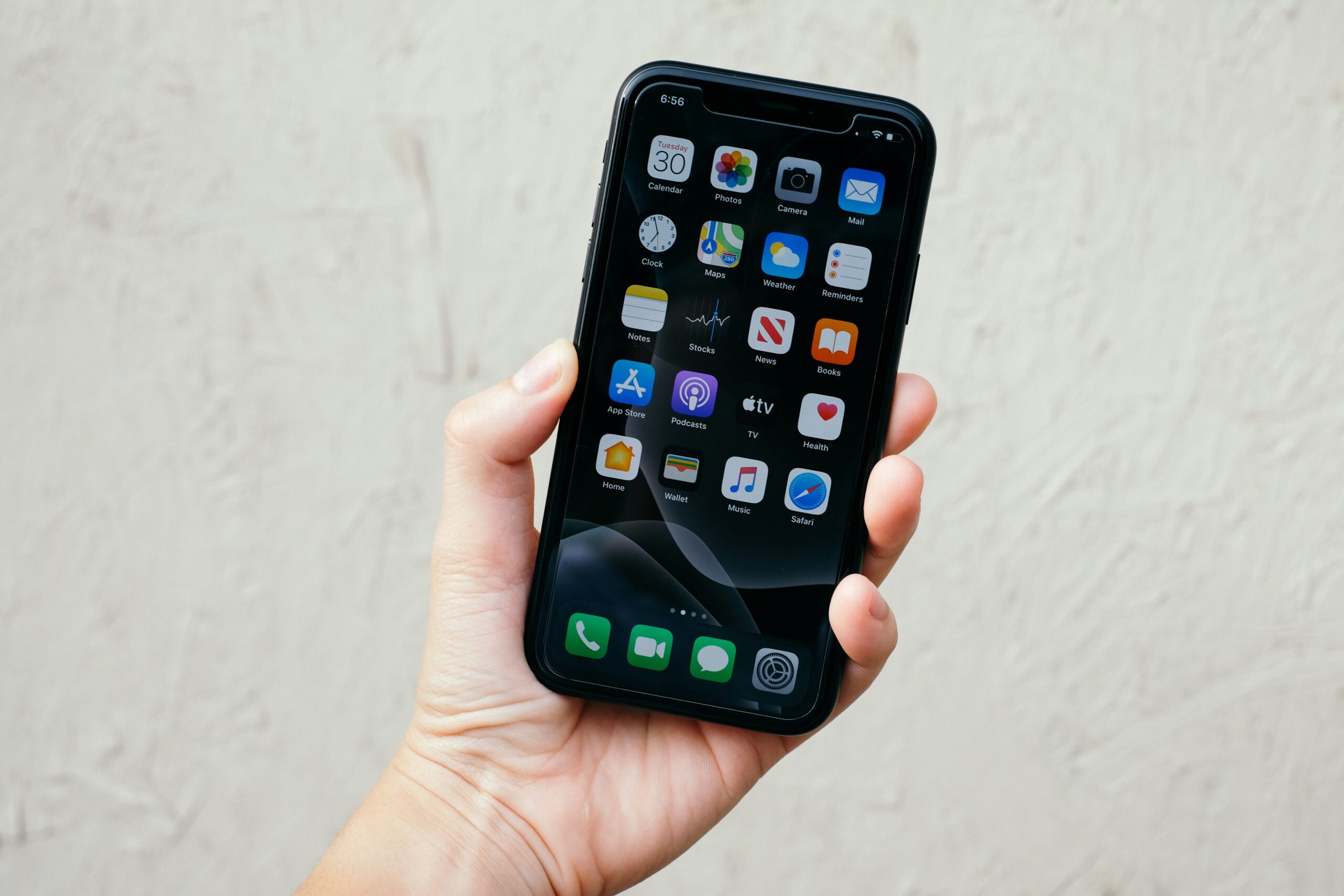

Glancing at your smartphone screen only to realize your regular signal bars have vanished and been replaced by an emergency indicator is a uniquely frustrating experience. When users frantically ask how do I get my phone out of sos mode, they are usually dealing with a sudden disruption to their daily communication, data access, and two-factor authentication services. This status icon signifies that your device is unable to establish a secure connection to your specific mobile network operator, leaving you restricted exclusively to emergency call bands supported by nearby cell towers.
The underlying reasons for this sudden drop in service range from temporary network outages and misconfigured network settings to physical SIM card misalignment or pending carrier software updates. Modern mobile operating systems are designed to constantly scan for available cellular bands, and when your chosen carrier’s signal drops below a functional threshold, the device automatically falls back to generic emergency channels. Knowing how do I get my phone out of sos mode requires taking a systematic approach to diagnostic testing, starting with basic soft resets before moving on to deeper network configurations and hardware checks.
Restoring your regular cellular connection requires understanding how your phone authenticates itself with local cell towers. This comprehensive technical guide walks you through the root causes of emergency signal locks, provides sequential recovery steps for both physical and digital network profiles, and helps you determine whether the issue lies within your personal hardware or with your wireless service provider.
Understanding Cellular Network Authentication and Emergency Fallback
To address the recurring question of how do I get my phone out of sos mode, it is important to understand what happens behind the scenes when a smartphone connects to a wireless network. Every mobile device uses a physical subscriber identity module card or a digital embedded profile to broadcast encrypted credentials to nearby cell towers. These credentials verify that your account is active, paid, and authorized to route voice calls, SMS text messages, and cellular data through that specific provider’s network infrastructure.
When your device encounters a scenario where your carrier’s primary frequencies are blocked or unavailable, the modem chip inside the phone shifts its operational mode. Instead of shutting down wireless radios completely, the operating system maintains a passive connection to any available tower operated by any carrier in the vicinity. This protocol ensures that if you dial emergency services, your call will be routed through whatever network tower is within range, regardless of who owns it or whether you hold an active subscription.
Therefore, seeing an emergency status symbol does not necessarily mean your phone’s internal wireless hardware is broken. Instead, it indicates a failure in the handshake process between your device credentials and your wireless provider’s network authentication servers. Resolving the issue is simply a matter of triggering a fresh network handshake or fixing the broken configuration path preventing normal authentication.
Initial Quick Fixes: Toggling Wireless Radios and Power Cycling
When faced with a sudden loss of service and wondering how do I get my phone out of sos mode right away, the fastest initial intervention involves forcing the device’s baseband processor to restart its frequency scan. Mobile phones often hang onto weak or degraded cell tower nodes long after they should have handed off the connection to a closer, stronger tower, creating a temporary state where authentication drops completely.
The simplest way to break this stuck connection state is by toggling Airplane Mode on for approximately fifteen to thirty seconds. Turning on Airplane Mode cuts power to the cellular modem, Bluetooth radios, and Wi-Fi chips simultaneously. When you disable Airplane Mode, the cellular baseband chip initializes a completely fresh frequency search, scanning available spectrum channels from scratch and connecting to the strongest nearby tower operated by your home carrier.
If toggling wireless radios fails to clear the status, executing a complete device restart or forced reboot is the next logical step. A full power cycle clears temporary system caches, resets background telephony daemons, and forces the operating system to reload your cellular provisioning profiles from local storage. In many cases, a simple reboot clears transient software glitches and restores your regular LTE or 5G signal indicator within a minute.
Evaluating Environmental Factors and Local Network Coverage Outages
Before diving into complex phone settings when asking how do I get my phone out of sos mode, you must evaluate your physical surroundings and current location. Wireless signals rely on radio frequency waves that can be severely degraded by natural topography, high-density building materials, underground structures, or thick metal shielding, creating common cell phone signal interference problems. If you recently entered a basement, elevator, reinforced concrete building, or remote rural area, your carrier’s signal may simply be blocked by physical barriers.
In these environmental scenarios, moving toward a window, stepping outside, or traveling to higher ground will often allow your phone to acquire a clear line of sight to a nearby base station tower. If moving to an open area does not restore service, the issue may stem from an active regional network outage affecting your provider’s local tower infrastructure.
Cellular towers undergo routine maintenance, software upgrades, and occasional equipment failures caused by severe weather or local power disruptions. You can verify whether a broader outage is occurring by checking online outage monitoring platforms or contacting your carrier via Wi-Fi calling or a secondary device. If local towers are undergoing repair, your phone will remain locked in emergency mode until your provider restores regional base station functionality.
Managing Physical SIM Cards and eSIM Cellular Profiles
A common hardware-related answer to how do I get my phone out of sos mode involves inspecting the physical or digital interface that holds your subscriber credentials. Over time, physical SIM cards can shift slightly inside their spring-loaded tray due to drop impacts, vibration, or thermal expansion, causing delicate metallic contact pads to lose alignment with the internal card reader pins.
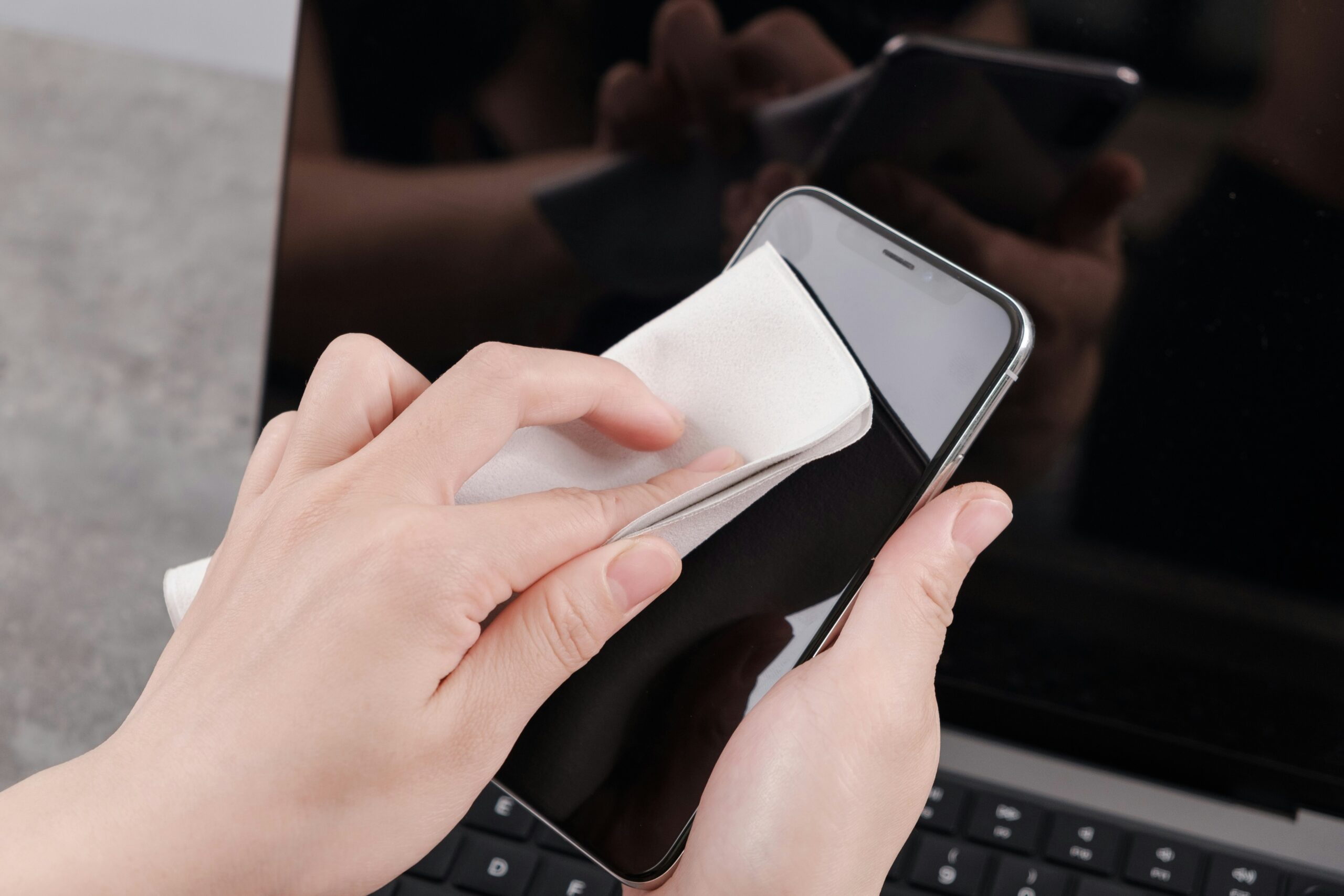
To troubleshoot a physical card, turn off your smartphone completely, insert a SIM ejector tool into the small tray hole, and carefully remove the tray assembly. Inspect the golden contacts on the card for visible dust, oils, oxidation, or physical scratches. Wipe the card gently with a dry microfiber cloth, reseat it firmly within the plastic alignment frame of the tray, reinsert the tray into the chassis, and power the device back on to test authentication.
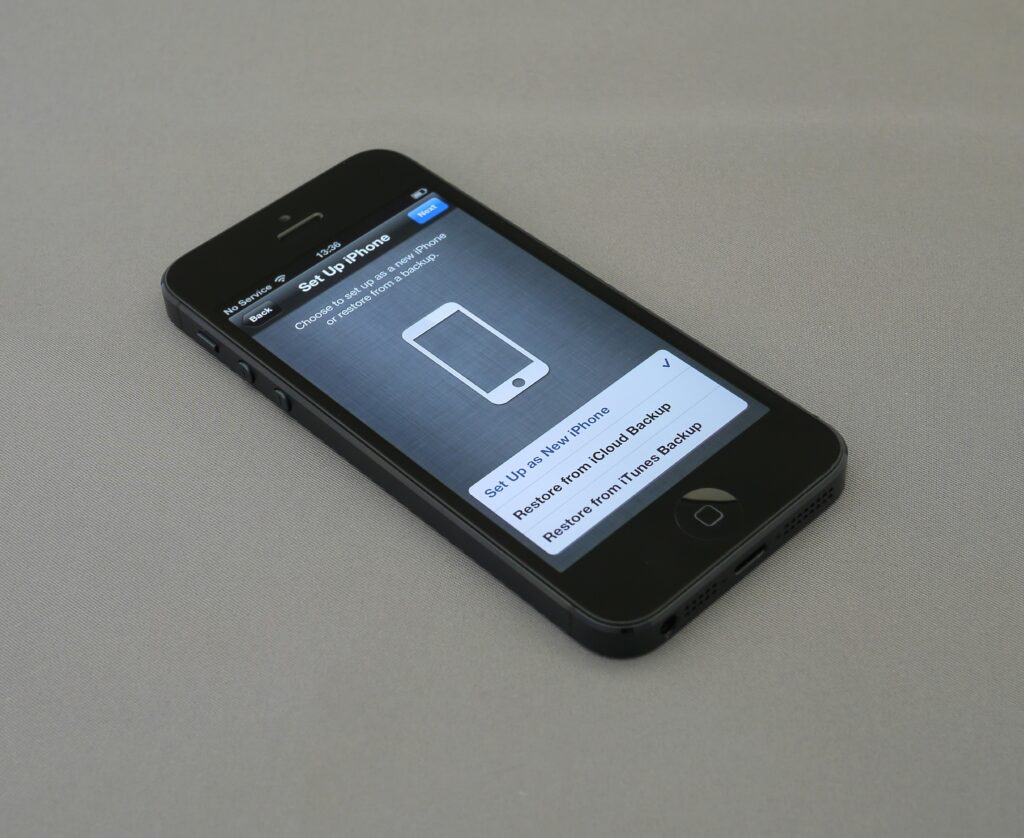
If your device uses an digital eSIM profile rather than a physical plastic card, physical misalignment is impossible, but digital profile corruption can still occur. Navigating to your device’s cellular settings menu allows you to view the status of your active line. If the eSIM profile appears greyed out or displays an error message, toggling the line off and back on can re-establish the connection. If the digital profile remains unreadable, you may need to scan a fresh activation QR code provided by your carrier to reinstall the profile.
Updating Carrier Settings and Mobile Operating System Software
Software compatibility plays a pivotal role when figuring out how do I get my phone out of sos mode after major network upgrades. Telecommunications providers regularly issue small, specialized software patches known as carrier settings updates. These background updates contain essential cryptographic keys, updated frequency band preferences, roaming agreements, and access point name configurations that tell your phone how to interact with modern network hardware.
If your device has missed critical carrier settings updates, its internal modem may attempt to connect to cell towers using obsolete protocols or deprecated frequency bands that your provider has phased out. Connecting your phone to a stable Wi-Fi network and navigating to the general information section within your device settings will automatically trigger a prompt if a pending carrier update is waiting for installation.
Similarly, keeping your broader mobile operating system updated ensures that your device contains the latest baseband firmware patches and other smartphone network troubleshooting updates released by hardware manufacturers. System updates frequently include bug fixes for cellular modem stability, improved power management for wireless radios, and refined network handoff logic that prevents phones from becoming stuck on emergency channels when transitioning between cell towers.
Resetting Network Settings to Clear System Corruption
When basic reboots and SIM checks fail to resolve the situation, resetting your device’s network configurations is one of the most effective troubleshooting steps for anyone asking how do I get my phone out of sos mode. Over months of routine use, storing dozens of Wi-Fi passwords, Bluetooth pairings, custom VPN configurations, and cellular access point names can cause conflict errors in the operating system’s networking database.
Performing a dedicated network settings reset flushes out custom cellular parameters, clears saved Wi-Fi networks, and rebuilds the factory default network configuration stack from scratch as part of effective mobile phone troubleshooting tips. This process forces the device to pull fresh access point names and mobile network configurations directly from your carrier’s tower broadcast signals upon rebooting.
It is important to note that executing a network reset will erase saved Wi-Fi passwords and paired Bluetooth connections, so you will need to re-enter your home network credentials afterward. However, personal data, photos, applications, and documents remain completely untouched during a network reset, making it a safe and powerful middle-ground solution before considering drastic measures like full factory restores.
Verifying Carrier Account Status and Billing Delinquencies
A frequently overlooked aspect of addressing how do I get my phone out of sos mode involves checking the operational status of your cellular account. Mobile service providers automatically suspend cellular line provisioning when an account incurs past-due balances, failed automated credit card payments, or data cap overages, immediately dropping the line down to emergency status.
When a carrier initiates a soft suspension on a specific phone line due to non-payment or administrative flags, the device’s SIM card credentials are instantly revoked from the primary billing and authentication databases. The phone’s modem continues to function normally, but when it attempts to register on local towers, the network refuses connection and downgrades the device to emergency coverage only.
To rule out account suspension, log into your wireless provider’s official mobile application or web portal using an active Wi-Fi connection. Check your primary dashboard to verify that your account balance is current, your plan features are active, and no security alerts or fraud holds have been placed on your line. If an administrative suspension has occurred, paying the outstanding balance or speaking with customer service will immediately reactivate your cellular line.
Diagnostic Comparison of SOS Mode Causes and Recommended Actions
To assist you in diagnosing why your device is stuck and deciding how do I get my phone out of sos mode effectively, this structured comparison pairs common symptoms with their underlying technical causes and immediate resolution paths.
If your service drops suddenly in a rural, basement, or elevator area, the cause is physical signal attenuation due to building density or geographic dead zones. The recommended action is to move to an open area, step near a window, or enable Wi-Fi calling until you return to a primary coverage zone.
If the emergency indicator appears after a sudden drop or physical impact, the cause is physical SIM card displacement or tray misalignment inside the slot. The recommended action is to power off the device, eject the SIM tray, clean the golden contact pads gently, re-seat the card, and re-insert the tray securely.
If the issue persists despite strong regional coverage and an active account, the cause is corrupted network configuration files or outdated baseband software. The recommended action is to perform a dedicated network settings reset through your device settings menu and check for pending carrier updates over Wi-Fi.
If service vanishes alongside an unnotified payment failure or plan change, the cause is an administrative account hold or line suspension by your mobile provider. The recommended action is to access your carrier’s online portal via Wi-Fi to verify account standing, update billing details, or clear fraud alerts.
When to Seek Professional Hardware Repair or Carrier Replacement
If you have executed every software reset, verified your account standing, tested fresh SIM cards, and still find yourself asking how do I get my phone out of sos mode, the underlying issue likely stems from physical hardware failure. Modern smartphones contain complex internal antenna arrays, specialized power management chips, and dedicated cellular modems soldered directly onto the logic board.
Physical drops, exposure to high humidity, or liquid ingress can crack delicate solder joints or corrode the internal radio frequency lines that connect the motherboard to the perimeter frame antennas. Additionally, internal component degradation can cause the cellular baseband processor to stop responding entirely, leaving the device completely unable to process cellular signals regardless of operating system state.
When hardware damage is suspected, bring your device to an authorized repair technician or your carrier’s technical service desk. Technicians can run specialized hardware diagnostic suites to determine whether the internal modem is responding properly. If the internal modem chip or logic board radio trace is damaged, repairing the board or taking advantage of a device replacement program will be necessary to restore full cellular functionality.
Long-Term Preventive Measures to Maintain Reliable Cellular Service
Once you successfully restore your connection and resolve the question of how do I get my phone out of sos mode, adopting proactive device maintenance habits can prevent unexpected service drops from recurring in the future.
Keep your device updated by installing operating system patches and carrier settings updates as soon as they become available. Enable automatic updates over Wi-Fi so your phone always maintains the newest cellular handoff protocols and security credentials required by modern 5G network towers.
Additionally, enable Wi-Fi Calling on your device through your cellular settings menu. Wi-Fi Calling allows your smartphone to route standard voice calls and SMS text messages securely over any trusted Wi-Fi network when cellular signals drop, providing a seamless backup communication channel whenever you step into concrete buildings, basements, or remote locations with poor carrier coverage.