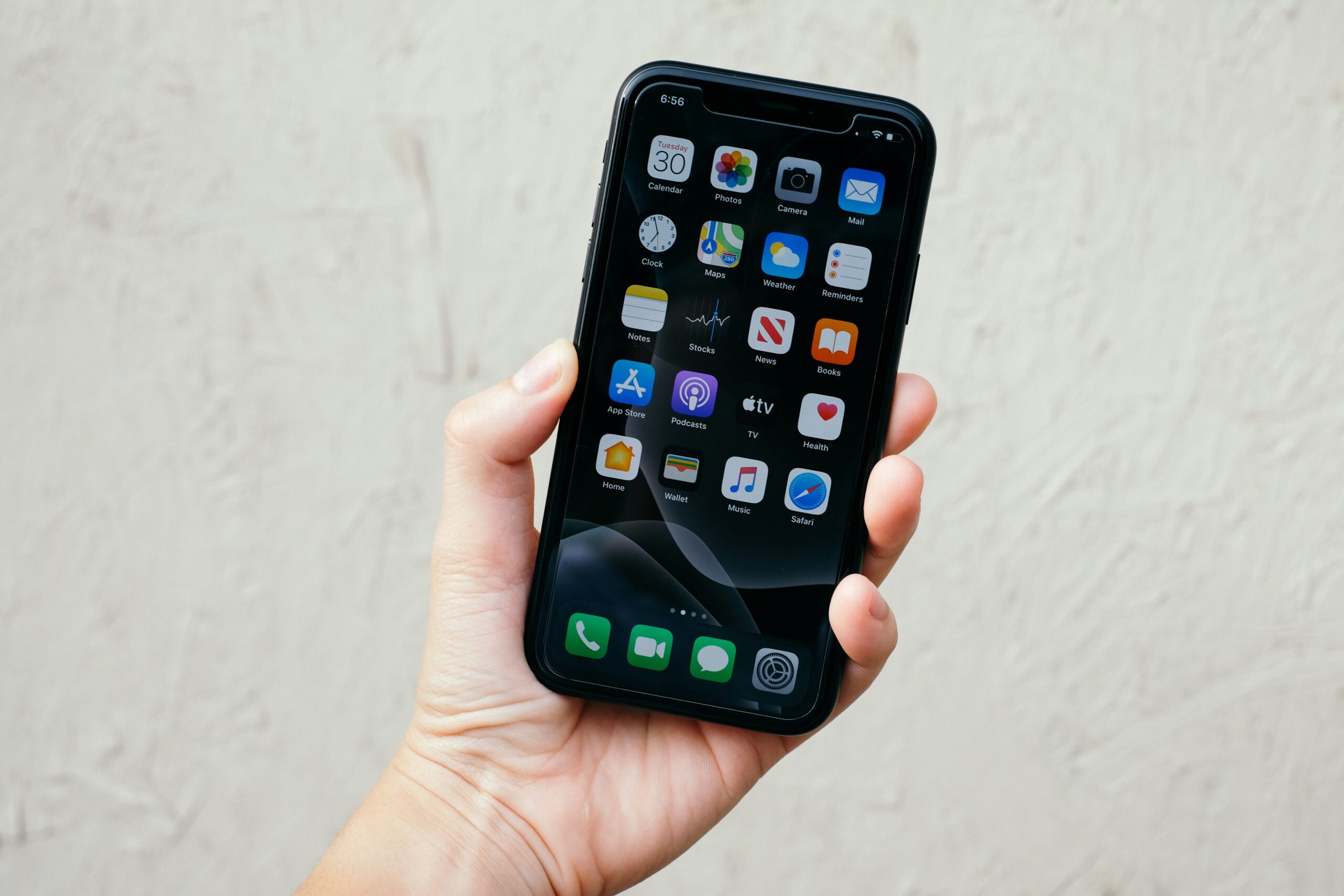
When a cell phone display doesn’t answer to a touch, it can be exasperating, however typically it will be solved without buying a new gadget. Often the trigger is easy–like dirt on the screen, a software bug, a malfunctioning screen protector or a program problem after updating the software.
Why a phone screen stops responding
First and foremost, let’s learn what most often leads to touch screen issues: – overloaded smartphone: The smartphone struggles to keep up with demand, resulting in lagging. The screen won’t respond well to taps. – water and dirt on the screen: The smallest of drops of water or a little dirt on the screen could interfere. – a Screen Protector: – Battery problems – physical impact or drop: The digitizer on the touch screen is delicate and might crack or break from physical shock. Software problems are surprisingly prevalent, but physical damage indicates you need repair.
Start with the simplest checks
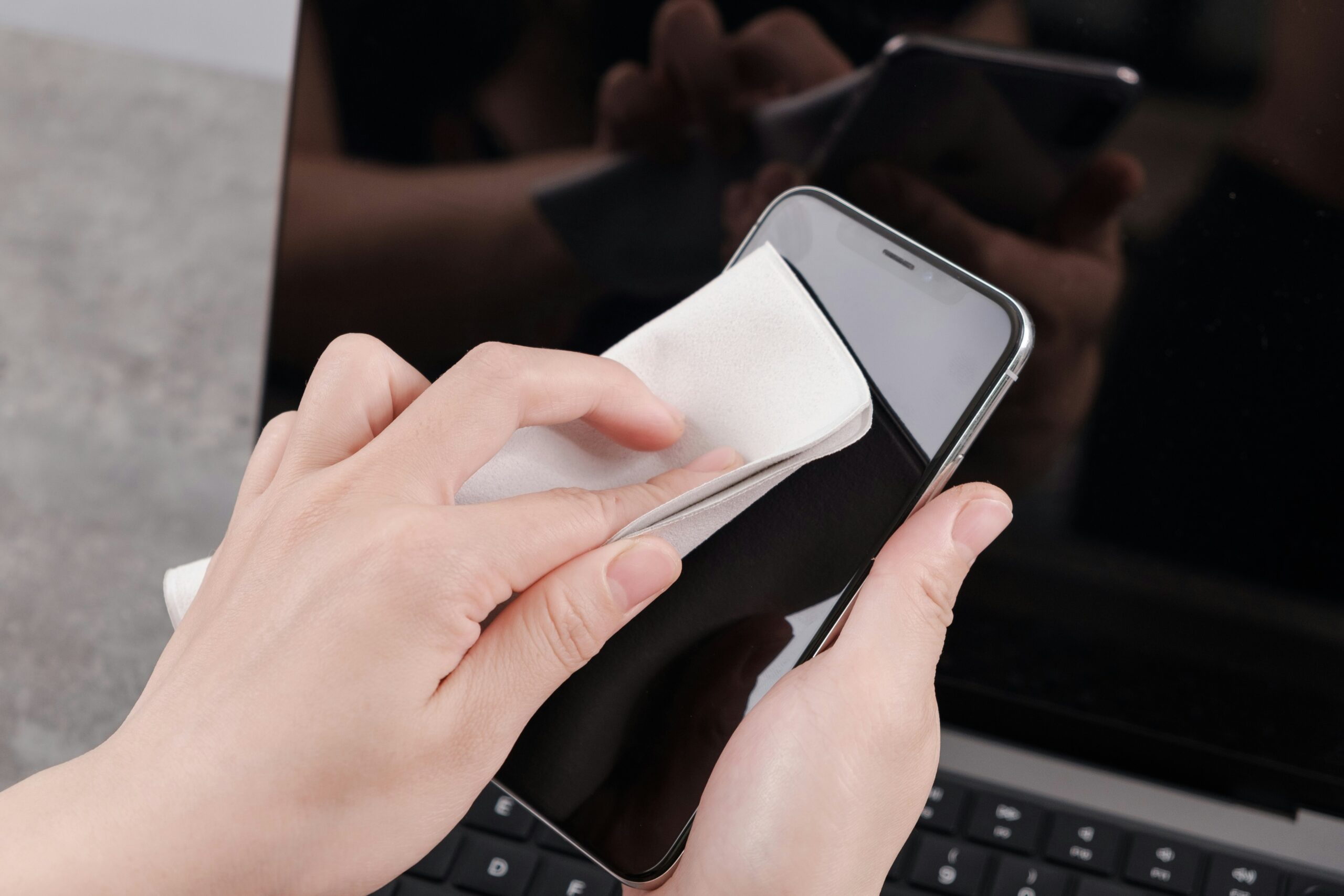
The first step in how to fix phone screen unresponsive touch is to rule out anything blocking the screen’s ability to register input. If dirt or smudges are affecting responsiveness, following a proper How to Clean Phone Screen guide can help restore normal touch performance. Remove thick cases, take off the screen protector if it is cracked or poorly aligned, and clean the display with a soft microfiber cloth. If the phone is damp, power it off and let it dry fully before testing again.
Also ensure that the fault is not restricted to just one region of the display. In other words, if only one edge of the screen or the corner doesn’t work, it is more likely related to the hardware or damage due to pressure. If the problem gets fixed by cleaning and taking out accessories, you know you have identified the source.
Restart the phone correctly
If your touchscreen appears to be lifeless and it is not the hardware’s issue, then it is likely to be due to one of these short-term glitches, for which you just need to restart your smartphone. If your screen responds in some capacity, you can just carry out a normal reboot process using the power menu of your mobile. However, if the touchscreen of your mobile completely freeze, it also has a force-restart code or key, the execution of which can restore its touch capability without data loss.
This is of great importance because there are many issues that are mistaken as touchscreen problems but actually are a software hang.
Also use forced rebooting if your phone suffered from an app crash, an update of OS, or a huge overload of memory. If the touchscreen begins to work again, you can be rest assured the problems are temporary and not hardware related.
Check for software causes
Check software issue If touch screen responds on reboot but breaks down later on, you should definitely take into account the software component of your phone. Usually the culprit is in either system update, installed application or buggy setting, all can result in this problematic screen touch behavior. So, close irritating application, get rid of recently downloaded shady application, and install pending OS updates on your system.
Safe mode on your phone comes really helpful, particularly with your Android phone, as it only loads with basic system apps. If you’re unfamiliar with the feature, understanding Android Safe Mode can help you identify whether a third-party app is causing the touchscreen issue.
And in case touch screen works, when your phone is in safe mode, then it’s certainly caused by the third party’s app which may have caused these kinds of complications for your smartphone.
Battery and overheating issues
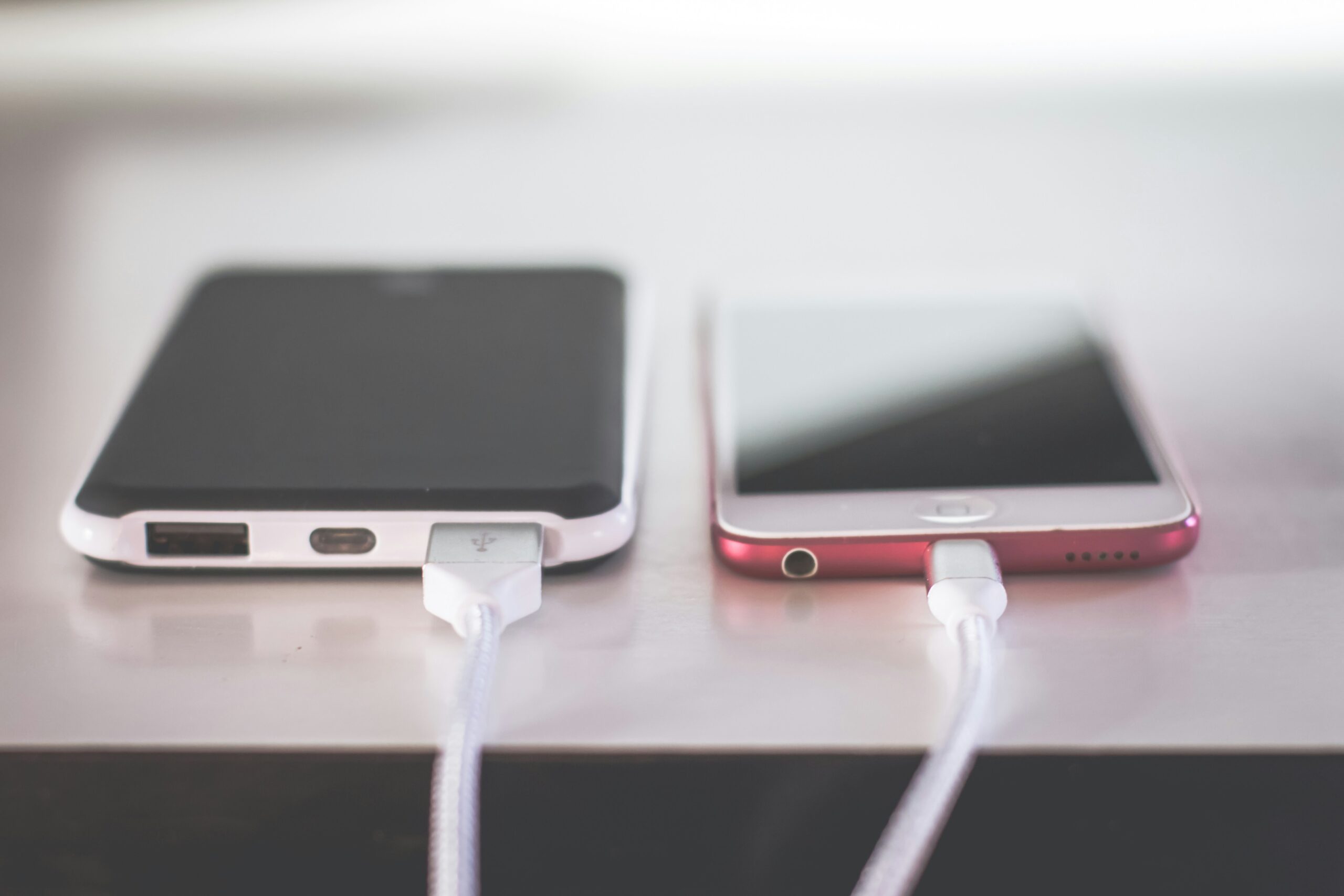
Another possible reason is if you’re using a weak battery or if the phone is overheating. Learning about Phone Overheating Causes can help you prevent performance slowdowns and touchscreen problems. Some smartphones can downclock the processor under heavy use and heat conditions. The result is that your phone can seem like it’s “frozen,” although the panel itself is fine. Try unplugging your phone from the charger, giving it a bit to cool down and testing once it reaches a normal temperature.
Advanced troubleshooting
After Youve tried the easier options If neither basic approach works, it is time to start the more severe remedies. For Android users this may mean backing up all of your information, and performing a factory reset on your device. If youre an iPhone and iPad user, restore options and recovery mode is the next course of action whenever a devices operating system is failing.
Use these with extreme caution, as they do delete your data if a complete restore is necessary.
Make sure you perform these only if you have made sure that your phone isnt affected by dust, accessories, excess heat or a faulty program. These reset features make it possible to differentiate hardware issues with software corruptions. If the phone’s screen remains to unresponsive after an efficient reboot, there’s likely a physical issue with your device.
When it is likely hardware
You’ll want to suspect the screen more if it was ever dropped, bent, cracked, or got liquid in it. The touch might stop working, even if the screen is otherwise showing an image, as the layer that senses your finger (digitizer) could be affected without the visible glass layer being compromised. Dead spots that won’t disappear, flickering touch input, or phantom touches are also good indicators that a repair may be necessary.
If you have completely lost touch on your device after performing a restart, an update, trying a safe mode test, and doing a factory reset, it’s a safe bet you’ll need to take it into a professional.
Pressing harder will not work. A repair professional will be able to properly identify whether the issue lies in the screen assembly, its cable connector, or the logic board.
Common mistakes to avoid
Many people make the mistake of factory resetting before trying to pinpoint what went wrong, deleting all personal data in the process. They assume a screen has broken after a fall, rather than check that the issue might just be a protector, a buggy app, or heat issues. The most commonly forgotten step is trying the phone out without any accessories, since it is amazing how many different and confusing problems can arise from case pressure, a magnetic holder, a charger that is not working right, or something that landed in a wet environment that pressed on the screen.
Practical repair decision
A handy rule of thumb: If you get touch functionality back after cleaning, rebooting, cooling it, or detaching accessories, keep it as-is and observe it. If touch becomes more consistent in safe mode, it’s likely an app or update related. If you see the damage, or water damage, or touch won’t ever return after a reset, you’re looking at a repair not settings issue.
Conclusion
The most effective way about how to fix phone screen unresponsive touch is to start with simple physical checks, then restart the phone, then test for software problems, and only then move to resets or repair. That sequence solves many cases without risking data loss. If the screen still does not respond after those steps, the issue is likely hardware and needs professional diagnosis.
FAQs
1. Why is my phone screen not responding to touch?
The most common reasons are dirt, moisture, a bad screen protector, a frozen app, a software bug, overheating, or physical damage to the display layer.
2. What should I try first when the touch screen stops working?
Start by cleaning the screen, removing the case and protector, and restarting the phone. Those are the fastest low-risk checks.
3. Can a software update fix an unresponsive touch screen?
Yes, sometimes. Updates can correct bugs that interfere with touch input, especially if the issue started after a recent system change.
4. How do I know if the problem is hardware?
If the phone has cracked glass, liquid exposure, dead spots, ghost touches, or no improvement after safe mode and reset, hardware damage becomes more likely.
5. Should I factory reset my phone right away?
No. A factory reset should come after simpler fixes because it can erase data and is unnecessary if the problem is caused by the screen protector, overheating, or a bad app.
6. Does a frozen screen always mean the display is broken?
No. A frozen or stuck screen can be a system crash, app hang, or temporary glitch rather than a damaged display.
7. What if only part of the screen works?
Partial touch failure often points to physical damage, connector issues, or localized digitizer problems, though you should still test software causes first.