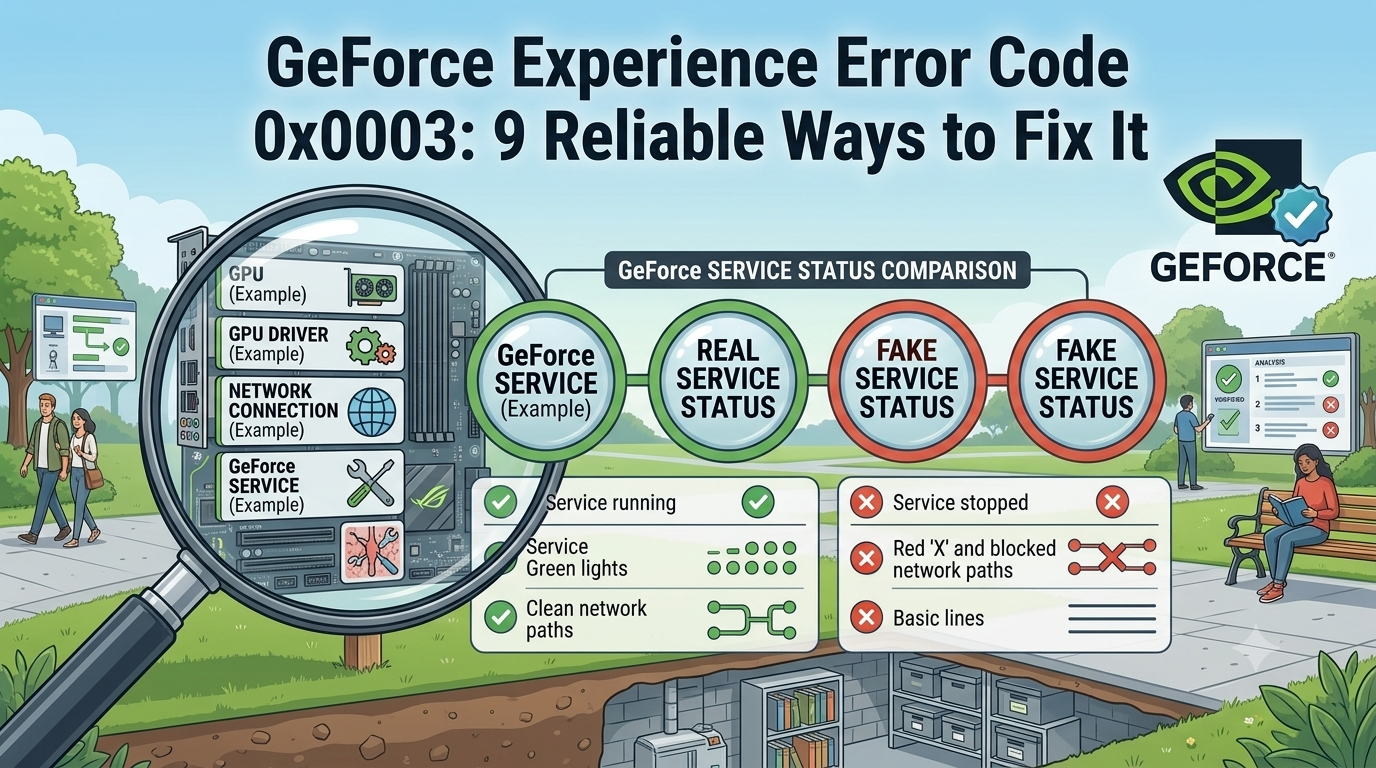
Few Windows errors are as frustrating as one that tells you to restart the computer after you have already restarted it. That is exactly what happens with GeForce Experience error code 0x0003. The application may refuse to open and display a message saying that something went wrong and that the PC should be rebooted before trying again.
The graphics card itself isn’t always the issue. In the past, the 0x0003 error has often been caused by several parts of the NVIDIA software environment, such as background services, driver install errors, permissions issues, or Windows networking. As the code is pretty general-purpose, no single solution works for every PC.
There’s also a crucial update that newer troubleshooting guides might not account for: NVIDIA has centralized PC gaming and creativity functionality within the NVIDIA App, which fully released in November 2024.
It’s now the platform that is intended to be the major, replacement platform for GeForce Experience. NVIDIA is pushing existing GeForce Experience users to migrate. The critical PC gaming and creative services previously available through GeForce Experience will go offline for users who are still signed up for it because NVIDIA has announced that the GeForce Experience web servers that support core GeForce Experience functionality are shutting down. That dramatically changes the focus of the problem from a graphical issue or hardware driver problem to the relationship your GeForce Experience installation has (or does not have) with that service by 2026.
You can still troubleshoot GeForce Experience in the short term, but the most efficient answer may be for you to eventually move over to the NVIDIA App.
What GeForce Experience Error Code 0x0003 Actually Means
The 0x0003 message does not identify one precise broken component. Instead, it generally indicates that GeForce Experience cannot communicate correctly with one or more NVIDIA components required for the application to function.
All of these pieces run in the background and Windows services take care of background tasks the user might seldom see, and NVIDIA drivers provide communication between the Windows OS, the GPU and applications that utilize it. If one of these parts stop working, get corrupted, get misconfigured, or cannot communicate, you may experience GeForce Experience fail at startup. This also explains why reinstalling the graphics driver is often ineffective.
Typically cited causes include; NVIDIA services stopped, corrupted / broken NVIDIA installation, graphics driver errors, network settings, and permissions issues within Windows.
Reports and community troubleshoots also reflect that strange software conflicts can be responsible at times, indicating that the same error code may be caused by completely different things on multiple machines.
The practical lesson is simple: treat 0x0003 as a troubleshooting category, not as a diagnosis.
Before Fixing GeForce Experience Error Code 0x0003
Before changing services or reinstalling software, perform a few basic checks.
Reboot your Windows at least once. This simple task can clear down the NVIDIA process or service that might be temporarily stuck. If the same error comes up again straight after, trying rebooting the system multiple times probably will not help.
From here, ensure your internet connection is working fine. GeForce Experience is traditionally quite reliant on NVIDIAs web based services (driver update information, account features, etc.). So if you have a configuration problem within your local network, this is likely contributing to problems with startup or connectivity.
Close down other GPU utils as well: In most instances, hardware monitoring applications, overlay tools, third party anti virus software and other applications that make use of hardware/graphics can cause a number of issues to occur. You should never disable your anti virus, it is only for testing purposes – if you disable security features, re-enable them after your testing.
After checking the easy stuff, begin to work down the list from smallest fix to largest.
1. Restart NVIDIA Services in Windows
One of the first places to investigate is Windows Services.
Press Windows + R, enter services.msc, and press Enter. This opens the Windows Services management console.
Expand the NVIDIA-specific categories and verify any applicable services (NVIDIA Display Container LS, NVIDIA LocalSystem Container). Names might vary slightly depending on your NVIDIA software and driver. If NVIDIA services that are expected to be active are instead paused, right-click on the appropriate services and select ‘Start‘.
If it’s possible for you to adjust its Startup Type, then investigate this setting before going ahead and setting all of these NVIDIA service to ‘Automatic’.
Keep in mind GeForce Experience is not run via only one exe and these required services need to be actively running or it may not start even when GeForce could. They seem to be mentioned frequently throughout tech troubleshooting websites and forum posts as to why one could receive the GeForce 0x0003 error code. After resuming any required service, check to see if you can again open GeForce Experience. If it appears to launch, no more severe troubleshooting measures should be required.
2. Check NVIDIA Services After Windows Updates
A useful variation of the previous step is to consider when the error started.
When a GeForce Experience you’d used for months suddenly pops up 0x0003, right after a Windows update, a graphics card driver install or uninstall, a system cleanup operation, or installation of a system-optimization security suite, you should consider when this happened.
A system update can reassign components, modify Windows drivers and system settings, or alter permissions. A system-optimization suite can disable system-level processes in the belief that they go unseen and unused.
Even the graphics card driver updater can install new NVIDIA services or alter the permissions for existing ones. Don’t automatically focus on your graphics card driver as soon as you see this error — match the time the error occurred with the most recent change made to your operating system and drivers and take your time process of eliminating other possibilities one by one.
3. Restart the PC After Major NVIDIA Changes
A restart is particularly useful after changing NVIDIA services or reinstalling driver components.
Everysoftware configuration change isn’t applied the same way as Windows with a session open. Background service could still be running after the service has been changed. Thus, make a relevant config changes, then reboot and then see how it goes.
You shouldn’t however reboot, and then ask if it worked!
You shouldn’t use the rebooting process. However use reboot after making a config.
4. Repair the NVIDIA Driver Installation
NVIDIADriverIssues IfGeForceExperience…0003 ServicesAreHealthy Your graphics driver is actually a combination of several separate programs running inside Windows that work together to interact with your GPU. Corrupted installations, partially completed update attempts, or compatibility problems from a previous driver can leave your environment a messy state, causing your system to register the NVIDIA driver as unavailable despite what GeForce Experience might otherwise indicate. When downloading drivers, choose official NVIDIA drivers from NVIDIA’s own driver resources rather than third-party sources.
There are two types of drivers: game drivers are geared towards new titles and frequent updates and drivers used for a studio environment, which prioritize stability and support for compatible editing software.
You should download them direct from the website – not from third-party sources. Don’t assume that just installing another version will magically resolve installation. Select a Clean install option in the NVIDIA installer and reinstall drivers with that method if the problem persists.
5. Reset Windows Network Components
Networking is another area worth investigating when service-related fixes do not work.
“That makes sense but it’s easy to take for a long way,” replied an online forum moderator for the tech site. “A network problem shouldn’t necessarily require me to disconnect my Wi-Fi.” And indeed, you likely don’t: It’s still possible that Windows might allow other network functionality such as visiting other sites or, when appropriate, connect to services needed by other software that aren’t impacted by that failed application connection. “Sometimes, something is corrupt in Winsock configuration or other local networking stuff causing applications that use it some grief,” it says.
One commonly suggested Windows troubleshooting command is netsh winsock reset, which Microsoft also documents as a network troubleshooting step.
netsh winsock reset
This reset affects how Windows networks communicate; treat it as a troubleshooting command instead of a simple on-off toggle. After running the command with an elevated Command Prompt (as administrator), restart Windows. If you are using third-party network software, VPN solutions, proprietary security applications, or unusual network set-up it can disrupt these.
Note that a command completion in Command Prompt will not necessarily mean that networking was the reason behind the 0x0003 error.
The command gives a good indication of whether the networking is the problem.
6. Check Security Software and Firewall Conflicts
Security software some times get in way of application which make us to use background service or to access network from other devices on our network. So, if after having the issue we come after installing new antivirus, end-point-security, firewall or privacy security products so let check out if the trouble is with our security product and then try to change the product, not our OS. One shouldn’t even think about disabling the security product to continue without issues, but check whether the NVIDIA products/services are being blocked.
Go through the products’ quarantinemblocked-apps /fw/events tabs or their settings if you are sure that issue is on it.
If it is the reason one should get in to it, you need only to temporarily disable it to do testing which would then to re enable again. The only reason you really don’t ever do is cause your troubleshooting guide should solve the original problem but shouldn’t generate other”.
7. Run Windows System File Checks When Other Software Behaves Strangely
Other Software Problem If other software isn’t performing correctly, this problem might not necessarily be the fault of the NVIDIA software. If some of your Windows services won’t start, your software constantly closes down without cause and windows components are complaining of various failures, it’s worth running the Microsoft built-in system file repairs.
The built-in fixes are the closest that these Microsoft tools get to being able to repair those failing windows parts, and although this isn’t presented as guaranteed fix for the 0x0003 error you should focus on the NVIDIA components if only those aspects of your system seem to be affected by it and your entire system seems to working OK otherwise. “Troubleshoot broadly, repair narrowly”:
This applies generally in troubleshooting and means that if several different pieces of software/components have a problem it might be the underlying OS components; but if a single piece of software or a closely related group of components have an issue it can be those components themselves; 5 applications failing requires troubleshooting windows, where as an NVIDIA application failing while windows gaming is working smoothly needs troubleshooting NVIDIA parts.
8. Reinstall GeForce Experience Only When Necessary
Should everything (the NVIDIA services, the driver installation, the network configuration and even the Windows OS itself) seem perfectly fine then you could certainly try reinstalling the application. But before that, take a moment to think about where NVIDIA are going with their software currently. The NVIDIA App replaced the cobbled together experience of running NVIDIA’s auxiliary applications.
According to NVIDIA, the app is designed to combine key aspects of both GeForce Experience and NVIDIA RTX Experience, with a focus on the features one might want – everything from drivers to game optimisations to recording, tweaking performance, and controlling graphics settings.
Given this, installing old GeForce Experience again isn’t necessarily going to be a permanent solution when the user simply wants a modern app for their GPU. For specific, older functionality you will probably still need to fix your current GeForce Experience – or go with the NVIDIA App for now.
9. Consider Moving From GeForce Experience to the NVIDIA App
This is the biggest difference between older 0x0003 guides and the current situation.
NVIDIA fully unveiled and announced the arrival of its new NVIDIA App in November 2024, saying that the GeForce Experience and NVIDIA RTX Experience feature parity were finalized. Just last week, the company took things one step further and began sending a warning to users still using GeForce Experience that major web servers driving essential GeForce Experience functionality will be disabled in the near future, and that they should consider making the switch to the NVIDIA App instead.
For that reason, if updating the system (drivers) is the one thing that comes to mind when you are thinking about solving the 0x0003 error, and you rely on GeForce Experience in order to update, optimize, optimize, play, record, or add overlays (the basics), it makes more sense to make the switch rather than waste valuable hours with an outdated piece of software.
The brand new NVIDIA App gives access to the latest GeForce drivers, Game Ready and Studio ones, app or game optimization, on-screen overlay, capture features, performance stats, and much more from the Santa Clara chip manufacturer.
Keep in mind, this does not imply all of your problems regarding error 0x0003 mandate removing GeForce Experience.
Why Some Common 0x0003 Fixes Should Be Avoided
Dozens of perceived workarounds for this problem exist scattered across the Web, but caution is advised when approaching them. Instructions that ask you to modify NVIDIA application files directly, replace internal port definitions, download an unofficial version of older GeForce software, alter your Windows registry without explaining the side effects or change hardware (to name a few examples) should generally be approached as potentially harmful.
Some users on community forums have discussed outlandish ways they got their specific computers to stop tripping the error – these are anecdotal evidence that may work in certain circumstances, but shouldn’t immediately be used as standard practice or treated as advice that is applicable to your system as well; community contributions suggest correlations between a specific setting and the result, not universal ruleset applicability to all systems. Along similar lines: don’t download so-called “driver updaters” just because one site claims to do this, when your vendor offers their own system for driver distribution.
A Smarter Troubleshooting Order
It’s usually a better use of time to approach 0x0003 using a high-risk (or low risk repairs approach), with low-impact changes implemented on a computer. Make an attempt at a computer restart, and try testing connection. Check NVIDIA services on the computer. Look for recent driver and software modification If it all continues, then consider utilizing an authentic NVIDIA driver setup.
Only after those steps should you move toward a full reinstall.
And if you are dealing with GeForce Experience in 2026, ask one additional question: Do you actually need GeForce Experience anymore?
If the answer is no, switching to the NVIDIA App may provide a cleaner solution than rebuilding an older software installation.
When the Problem Is Probably Not Your GPU
A key useful distinction to make is between a software fault and a hardware failure. If your games load in okay, Windows detects the NVIDIA graphics card, the GPU appears in Device Manager, and other performance seems fine, the mere presence of a standalone GeForce Experience 0x0003 error does not necessarily indicate that the graphics card itself is failing. The error is associated with the NVIDIA add-on software environment.
Issues with hardware cause more widespread symptoms, this particular code should not be considered a GPU test.
Making this distinction may save you some money on replacement hardware.
How to Prevent the Error From Returning
There isn’t a magic bullet to eliminate software bugs entirely, but good maintenance practices will prevent more than needed.
Ensure your Windows installation is up-to-date along with your NVIDIA drivers and always install GPU software from NVIDIA themselves, avoid “junk cleaning” programs that often just disable services and explain nothing as to what they are disabling.
If running multiple GPU utilities, check which programs get to start with Windows on startup. Conflicts occur when multiple programs are configured to handle things like overlays, monitoring, recording, or any other graphics-related function at the same time.
Most importantly don’t try fixing too many things at once.
You will likely resolve the problem by rebooting services, resetting the network, re-installing drivers, fiddling with system settings and uninstalling programs in a single session; however, you have no way of knowing what the original cause was, making troubleshooting a difficult endeavor in the future.
The Bottom Line on GeForce Experience Error Code 0x0003
GeForce Experience error code 0x0003 is frustrating because the code does not point to one universal cause.More often than not, the troubleshooting starts off with NVIDIA services/background services, driver reliability, Windows Networking issues, permissions, or software conflicts rather than the physical GPU hardware.That’s why you should avoid testing every possible fix you find online when trying to resolve this error.Rather, begin with basic steps first, one-by-one change things up and primarily use official NVIDIA programs where it’s the most sensible choice to do.
On top of all of that, there is a bigger thought to consider for everybody that this may be an error they are running into right now, this error no longer supports NVIDIA being paired with the GeForce Experience.
NVIDIA fully moved their service functions into the NVIDIA App and are nudging some of its remaining GeForce Experience clients to join them. So if you continue to receive this error despite repairing and restarting programs, then do not limit yourself to only these suggestions! For most, switching to the existing NVIDIA App could solve your problem instead.
FAQs
1. What causes GeForce Experience error code 0x0003?
No definitive cause exists for all computers, but common suspected contributors are NVIDIA services stopped on PC, NVIDIA has been improperly installed/damaged, issues involving driver settings, computer operating systems including Microsoft Windows networking problems, etc; software conflict and user rights.
2. Can restarting Windows fix error 0x0003?
Restarting won’t solve the configuration/installation error repeatedly, but it might fix the problem on a one-time basis which has caused a process or service hang.
3. Is error 0x0003 a sign that my NVIDIA GPU is failing?
You’ve either downloaded some of the wrong GeForce drivers again, or the GeForce Experience app. It doesn’t automatically mean the graphics hardware itself has problems as it refers to the application you are using GeForce with.
4. Should I reinstall my NVIDIA graphics driver?
What I have seen, on those rare occurrences, when an NVIDIA installation becomes corrupted and inconsistent, has been what’s called a driver re-installation, from the actual driver provided source by NVIDIA, and, if, the problem persists, then we would proceed with an installation called a clean installation.
5. Does the NVIDIA App replace GeForce Experience?
Yes The NVIDIA App has been rolled out by NVIDIA as a single program that unifies much of the functionally of the GeForce Experience (and other NVIDIA utilities). In addition, it’s gently coaxing remaining GeForce Experience users to make the transition.
6. Is it safe to download an older GeForce Experience version?
Avoid non-official and older installer files or packages if you don’t really have to, and if it is mandatory to get NVDIA related software, make sure to get it from Nvidia official repository instead of downloading unsigned exe from some untrusted website.
7. What Should I Do When None of the Solutions Work?
When none of the above steps help resolve the issue, if everything including the installation, Nvidia drivers, networking and service checks failed then make sure toswitch overto the NVIDIA App. Also, if any of your other Window apps don’t run, don’t go into tinkering with the Nvidia file just and analyze the larger Windows surroundings instead.
Conclusion
GeForce Experience Error Code 0x0003 can be frustrating because the message does not identify one specific cause. It could be from an nvidia background process, broken driver install, Windows networking, security software, a conflict among system processes – the list goes on. Hence the approach here involves some step-by-step diagnostic steps rather than any single “magic bullet.” Try starting with the most obvious such as Windows restart and nvidia process checks before digging in to your graphics driver, your networking, any recent apps you’ve installed and lastly, moving to a clean install.
Avoid registry tweaks, hacked installers and third-party driver bloat packages.
There’s also a simple answer for users dealing with the issue right now: NVIDIA recently migrated most GeForce Experience features over to the new NVIDIA app, and if getting the older version working becomes problematic it might simply be much less hassle to just ditch GeForce Experience and use the newer NVIDIA app instead.
Ultimately, GeForce Experience Error Code 0x0003 should be treated as a troubleshooting signal rather than evidence of a failing graphics card. By identifying where the software environment is breaking down and making changes one step at a time, most users can reach a cleaner and more reliable solution.