
The Realtek audio driver is among the most widespread types of software in the Windows operating system. In other words, almost every personal computer and laptop has Realtek audio chipsets installed at the moment. It does not matter if it is an office PC, gaming laptop, business-class computer, or a custom build – each of these machines is likely to use Realtek.
While most users will not have to worry about their audio drivers in their daily lives, these programs are integral to the proper functioning of the computer. The Realtek audio driver is responsible for enabling communication between the Windows OS and multimedia devices. A faulty driver may cause issues such as no sound, distorted audio, malfunctioning microphones, and more after a Windows update.
This article will provide an overview of what the Realtek audio driver is, explain why it is necessary, and give advice on its installation and maintenance. Additionally, the guide below will review common issues that may appear alongside the Realtek driver and help resolve them.
Why the Realtek Audio Driver Is Important
A computer’s hardware cannot communicate directly with Windows without software that translates instructions between the operating system and the device itself. Learning how device drivers work in Windows helps explain why audio drivers are essential for proper hardware communication. That software is called a driver.
For audio hardware, the Realtek audio driver performs several essential functions:
- Enables sound playback
- Supports microphone input
- Manages multiple audio devices
- Provides audio enhancements
- Enables surround sound features
- Controls headphone detection
- Allows communication with external speakers
Without a functioning driver, Windows may recognize the hardware only partially or fail to detect it altogether.
Understanding How the Realtek Audio Driver Works
Think of the audio driver as a translator.
When you play music, watch a movie, or join a video meeting, Windows sends digital instructions. The driver converts those instructions into commands that the Realtek audio chipset understands.
The process usually looks like this:
| Step | What Happens |
| Application creates sound | Music player, game, browser, or video call generates audio |
| Windows processes audio | Windows prepares the audio stream |
| Realtek audio driver translates instructions | Driver communicates with hardware |
| Audio chipset converts digital signals | Hardware prepares playback |
| Speakers or headphones produce sound | You hear the final output |
If any part of this chain breaks, audio problems begin to appear.
Signs That Your Realtek Audio Driver Needs Attention
Many audio issues are actually driver-related.
Common symptoms include:
- No sound at all
- Crackling or popping audio
- Low sound volume
- Headphones not detected
- Internal speakers stop working
- Microphone unavailable
- Audio randomly cuts out
- Delayed sound during videos
- Missing audio enhancements
- Device disappears from Windows
Sometimes these problems appear immediately after a Windows update or installing new hardware.
Installing the Realtek Audio Driver Correctly
Installing the proper driver is usually straightforward, but using the correct version is important.
The general process includes:
Step 1: Identify Your Computer
Know whether you’re using:
- Desktop PC
- Gaming laptop
- Business laptop
- Custom motherboard
Different manufacturers may customize the Realtek driver.
Step 2: Remove Broken Drivers (When Necessary)
If audio problems persist, uninstalling the existing driver before reinstalling often resolves conflicts.
Restart the computer afterward so Windows can detect the audio hardware again.
Step 3: Install the Correct Driver
During installation:
- Close running applications.
- Avoid interrupting the installation.
- Restart when prompted.
- Allow Windows to finish hardware detection.
A restart ensures all audio services initialize correctly.
When Should You Update the Realtek Audio Driver?
Many users assume every new driver should be installed immediately.
That is not always necessary.
Updating makes sense when:
- Audio no longer works
- Windows update caused problems
- New hardware requires support
- Security improvements are released
- Audio quality improves
- Microphone compatibility increases
- Stability issues are fixed
If your system works perfectly, unnecessary updates may provide little benefit.
Common Causes of Audio Driver Problems
Driver failures rarely happen without a reason.
Some of the most common causes include:
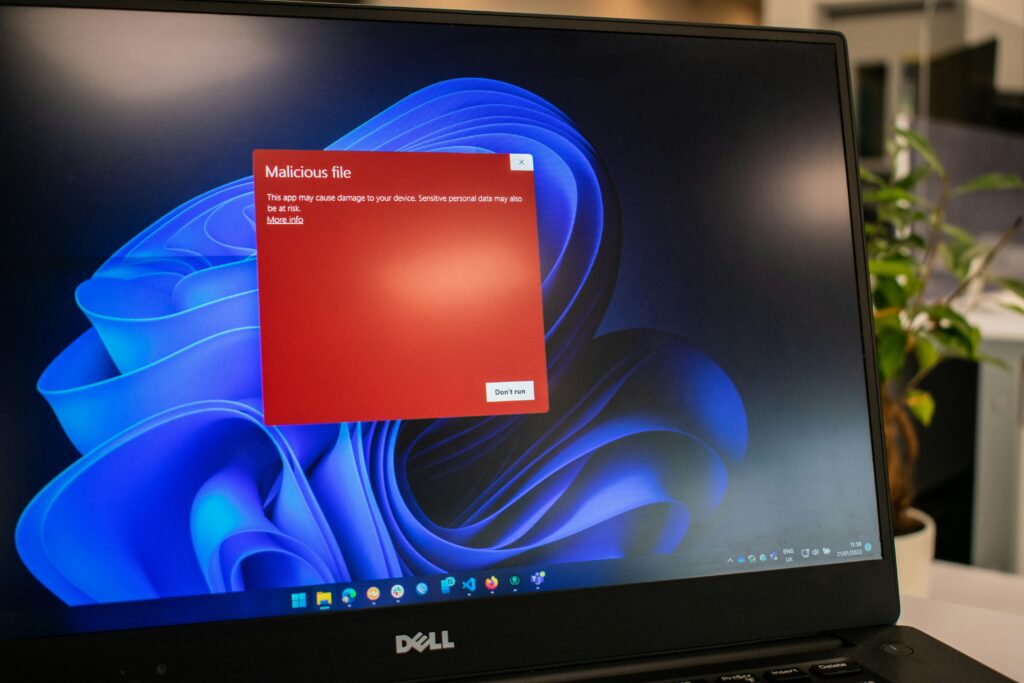
Windows Updates
Major Windows upgrades occasionally replace drivers automatically.
This replacement can introduce compatibility issues.
Driver Corruption
Power failures, incomplete installations, or damaged system files may corrupt driver files.
Incorrect Driver Version
Installing a driver intended for another motherboard or laptop model can disable audio completely.
Hardware Configuration Changes
Replacing components like motherboards or storage drives may require reinstalling drivers.
Software Conflicts
Third-party audio enhancement programs sometimes interfere with Realtek services.
Built-In Features Many Users Don’t Know About
Modern Realtek drivers often include useful capabilities beyond basic sound playback.
These may include:
- Multi-channel speaker configuration
- Automatic headphone detection
- Equalizer settings
- Bass enhancement
- Loudness equalization
- Echo cancellation
- Noise suppression
- Microphone boost
- Jack remapping
- Audio balancing
Available features vary depending on your computer manufacturer and hardware.
Troubleshooting Realtek Audio Driver Problems
If audio suddenly stops working, follow a logical troubleshooting process instead of randomly reinstalling software. Understanding common Windows audio problems can also help identify whether the issue is caused by drivers, hardware, or system settings.
Check Volume Settings
It sounds obvious, but muted applications and disabled playback devices remain among the most common causes of “no sound.”
Restart Windows Audio Services
Sometimes Windows audio services stop responding.
Restarting the system often restores normal functionality.
Verify Playback Device
If Bluetooth headphones or HDMI monitors were previously connected, Windows may still be trying to send audio to those devices.
Selecting the right audio output device can often restore sound.
Inspect Device Manager
Look for:
- Yellow warning icons
- Missing audio devices
- Disabled hardware
- Unknown devices
These indicators often point to driver-related problems.
Reinstall the Driver
If corruption is suspected:
- Remove the existing driver.
- Restart the computer.
- Install the appropriate Realtek audio driver.
- Restart again.
This clean installation frequently resolves persistent issues.
Practical Example
Imagine a laptop owner updates Windows overnight.
The next morning:
- Speakers produce no sound.
- Headphones work intermittently.
- Video calls cannot detect the microphone.
Instead of assuming the hardware failed, the user checks the audio driver.
They discover Windows installed a generic audio driver during the update.
After reinstalling the proper Realtek audio driver, all devices begin functioning normally again.
This situation is surprisingly common after major operating system updates.
Realtek Audio Driver vs Generic Windows Audio Driver
| Feature | Realtek Audio Driver | Generic Windows Driver |
| Basic sound | Yes | Yes |
| Full hardware support | Yes | Limited |
| Audio enhancements | Yes | Usually No |
| Noise cancellation | Often | Rarely |
| Headphone detection | Yes | Limited |
| Surround sound | Supported | Limited |
| Manufacturer customization | Yes | No |
| Advanced microphone controls | Yes | Limited |
The generic driver is useful as a temporary solution, but the Realtek driver typically unlocks the hardware’s complete functionality.
Professional Tips for Better Audio Performance
Maintaining stable audio is easier than constantly fixing problems.
Consider these best practices:
- Keep Windows updated.
- Avoid installing multiple audio management applications.
- Restart after major driver installations.
- Remove unused virtual audio devices.
- Use compatible hardware.
- Avoid interrupting driver installations.
- Keep chipset drivers current.
- Create restore points before major driver updates.
These habits reduce long-term compatibility problems.
Common Mistakes Users Make
Many audio issues are caused by simple mistakes.
Installing Random Drivers
Downloading drivers from unofficial sources can introduce compatibility problems.
Ignoring Restart Requests
Many users skip restarting after installation.
This prevents Windows from loading the new driver correctly.
Updating Too Frequently
Constantly installing new driver versions may create unnecessary instability.
Assuming Hardware Is Broken
A missing driver can make perfectly functional speakers appear defective.
Removing Audio Software Without Planning
Deleting audio software without understanding its purpose can disable advanced features.
How Businesses and Professionals Benefit
Reliable audio isn’t only important for entertainment.
Professionals depend on stable drivers for:
- Video conferencing
- Online teaching
- Customer support
- Podcast recording
- Content creation
- Music production
- Voice recognition
- Remote work
Even small driver issues can interrupt meetings or reduce recording quality.
Maintaining Long-Term Driver Stability
Rather than repeatedly fixing problems, focus on prevention.
A stable system typically includes:
- Proper shutdown habits
- Regular operating system maintenance
- Reliable antivirus protection
- Updated motherboard software
- Compatible hardware
- Clean driver installations when necessary
Routine maintenance helps prevent unexpected audio failures.
Frequently Asked Questions
What is the realtek audio driver for?
The realtek audio driver serves the purpose of enabling the operating system (in this case, Windows) to communicate effectively with the realtek audio hardware. This ensures that all audio-related components such as speakers, microphones, headphones, and other sound devices function properly.
Is it safe to update the realtek audio driver?
Yes, It is safe to update the realtek audio driver as long as you are using the correct driver for your specific computer or motherboard.
Why did my sound stop working after an update?
Your sound might have stopped working after an update because the update process can sometimes overwrite or replace certain drivers with generic ones, requiring you to manually install the appropriate realtek audio driver again.
Can I uninstall the realtek audio driver?
Yes, you can uninstall it; however, doing so can result in losing advanced audio features or having no sound until another driver is installed.
Do all computers use the realtek audio driver?
No, Not all computers use the realtek audio driver. Several laptop and desktop computer manufacturers utilize realtek’s audio technology to produce their audio components, but Some use Intel, AMD, Creative, Conexant, Cirrus Logic or other audio hardware instead.
How often should I update the driver?
Only update the driver when necessary, Such as resolving bugs, improving compatibility, addressing security vulnerabilities and supporting new hardware.
Summary
The Realtek audio driver is an essential component of the Windows operating system, facilitating communication between your computer’s software and audio hardware. Although it typically operates behind the scenes, its role in enabling proper audio functionality becomes apparent when issues arise.
It is crucial to understand how these drivers work, what warning signs indicate a potential problem, and how to approach troubleshooting. Explore our Windows driver guides for more expert resources on fixing hardware, software, and performance issues.
The correct Realtek audio driver must be used to achieve optimal performance, especially during online meetings, video conferencing, streaming, work-from-home activities, or entertainment. It also ensures enhanced compatibility and access to the latest audio technology.
Rather than blindly updating your drivers, it is advisable to take the time to clean install the correct version for your hardware and keep them up to date. This strategy should minimize potential issues and enable you to enjoy an improved audio experience.