There are many issues that can crop up with our smartphones, but none feel as inconvenient or even infuriating as a nonresponsive touchscreen. Trying to answer the phone, use an app, get unlock your device to get to some of its many capabilities can be frustrating to say the least when the screen refuses to co-operate.Fortunately, learning how to fix phone screen unresponsive touch problems often starts with a series of simple checks before considering expensive repairs.
Often, this is just a quick software bug; a bad app; moisture in the screen; lint; a bad app; or a screen protector that is incompatible; but in some cases internal component failures; impacts on hardware, or a bad digitizer could be the root of the problem. Knowing if yours falls in one category or the other, can determine the next logical repair approach.
Here’s why your phone’s touchscreen suddenly stopped responding, along with the history and fundamentals behind how touchscreens work. Explore more technology guides and troubleshooting tutorials on Tech Galaxcy for additional smartphone and gadget solutions. You can discover the best troubleshooting tactics to try, for both Android phones and iPhone, and learn how to tell whether it is a simple DIY job or time for a visit to the repair shop.
Why Phone Touchscreens Stop Responding
Modern smartphones almost always rely on how capacitive touchscreens work to detect your finger’s electrical properties and register touch input accurately. Those screens detect the electrical properties of your finger. When things works as intended, those touch gestures get relayed to your operating system with no time to spare.
If any part of this process fails, the display may:
- Ignore taps completely
- Respond only in certain areas
- Freeze temporarily
- Register delayed touches
- Produce random or “ghost” touches
The underlying cause may be software-related, hardware-related, or environmental.
Common Causes of an Unresponsive Touchscreen
Understanding the source of the problem makes how to fix phone screen unresponsive touch issues much easier.
Software Problems
Temporary software bugs are another frequent culprit. A bad update, low on memory, corrupted OS files or even an app with a glitchy behavior can all mess with the touch input until it’s reset or fixed. Putting intoSafe Modeor uninstalling apps should identify any software sources.
Physical Damage
However, even if the device looks intact on the outside and its screen lights up, dropping your device can damage or impact the layer underneath the glass known as the digitizer and can loosen connections inside your iPhone display even though you can’t see a scratch or impact to it.
Moisture
Liquid contact – water, sweat or prolonged exposure to a high humidity environment could be disrupting the touch-screen’s electronic detection system. Extremely high levels could even potentially involve internal damage through liquid.
Dirty Screen
There could be a grease, sunscreen, cream, dust, or dirt build-up which can affect sensitivity to touching the screen particularly the edges.
Screen Protectors and Cases
A thin case/the thick case or poor quality glass protector would not respond when you attempt to click or physically touch the screen by accidental pressure of thecase/protector
Extreme Temperatures
Very high or very low temperatures may temporarily affect touchscreen performance until the device returns to a normal operating range.
How to Tell Whether the Problem Is Software or Hardware
Before attempting advanced repairs, try identifying the type of failure.
Software issues usually involve:
- Touch working after restarting
- Problems beginning after a software update
- Freezing only inside certain apps
- Touch improving in Safe Mode
Hardware issues often include:
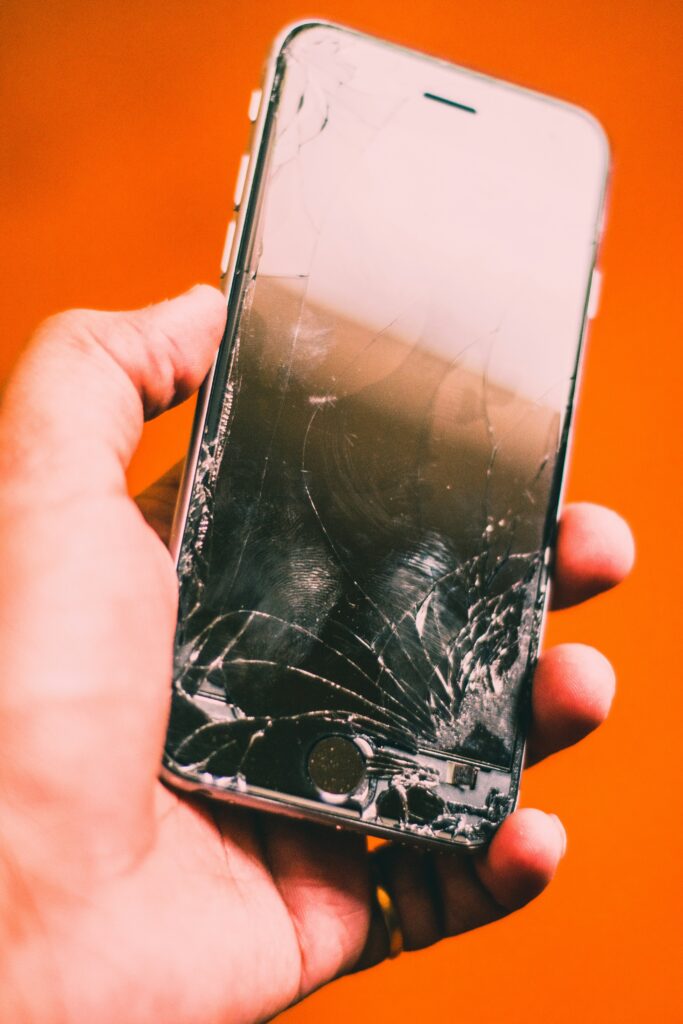
- Cracked glass
- Dead areas on the display
- Flickering together with touch failure
- Touch stopping after a drop or water exposure
- Complete failure that persists after restarting
Before attempting advanced diagnostics, it may be as straightforward as a quick reboot with accessories removed and taking care to inspect for any visible signs of physical trauma to your peripheral.
1. Restart Your Phone
One of the quickest ways to begin how to fix phone screen unresponsive touch problems is by performing a simple restart. Software, Memory or Drivers glitch temporary Memory usage, a stray background program or transient system process could be causing the issue. By rebooting the touchscreen will get the touch screen responding and the basic drivers will reload while not losing your personal data.
If your touchscreen is partially responsive, use the on-screen power menu to restart the device.
If the screen does not respond at all, perform a force restart.
Android Force Restart
Some button combinations differ among the different mobile companies but for most of the Android smartphones keeping hold of the Power button up to 10-20 seconds makes the phone restarting up in a few moment.
iPhone Force Restart
This differs depending on which iPhone model you are using, however if you were dealing with a recent iPhone it entails pressingVolume Uptap, volume tap down and then holding the side tap then the (power) button in.
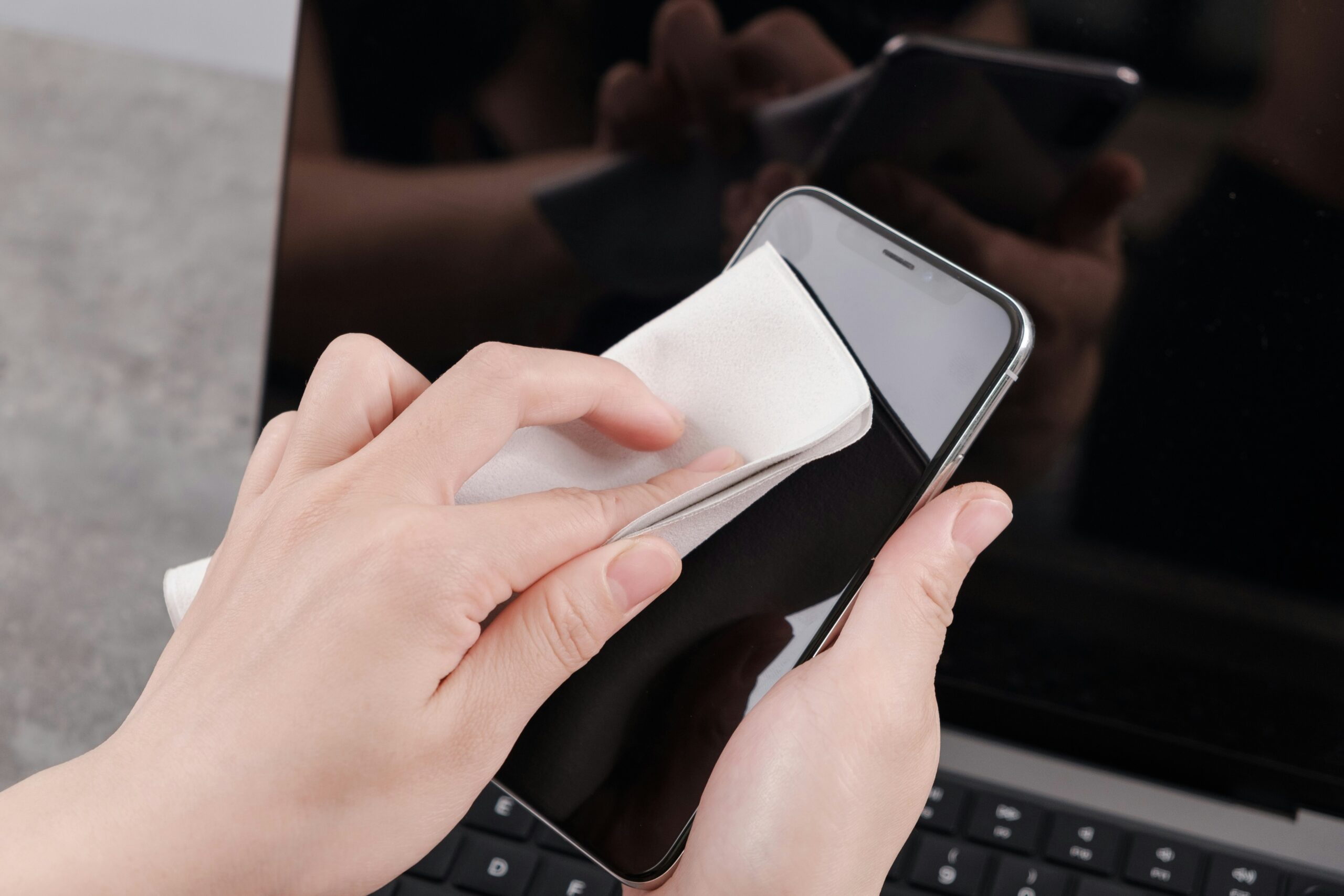
2. Clean the Screen Thoroughly
Dirt and grime on your screen are often the reason your touchscreen isn’t responding correctly. To tell the difference when there was to a touch, your mobile device measures electrical charge on the conductive surface area of touch Screen, not how much you push on display, so dirt, natural Skin oils, lotion, oil, foods oils & water can disrupt its effectiveness.
To clean your screen safely:
- Turn off the phone.
- Use a soft microfiber cloth.
- Slightly dampen the cloth with water if necessary.
- Never spray liquid directly onto the phone.
- Avoid abrasive cleaners or paper towels.
Pay extra attention to the edges of the display, where debris often collects.
3. Remove the Screen Protector
If you’ve recently installed a tempered glass protector or privacy screen, it could be interfering with touch sensitivity.
Poorly manufactured protectors may:
- Reduce touch accuracy
- Create dead zones
- Cause delayed input
- Prevent gestures from registering properly
Temporarily remove the protector and test the display. If the touchscreen immediately improves, replacing it with a high-quality protector designed for your specific phone model is usually the best solution.
4. Remove the Phone Case
Certain large or poorly designed cases, will even push down, particularly around the edges on to the display, whilst not a common occurrence, when this happens the case can impede responsiveness of the touch and will actually makephantom touch inputs! If this is something you are experiencing, take the case off completely and test the phone first before assuming your phone screen is broken.
5. Dry the Phone if It Has Been Exposed to Water
Even phones with water-resistance ratings can experience temporary touchscreen issues after exposure to rain, spills, or humidity.
If moisture is present:
- Turn the phone off immediately.
- Dry the exterior thoroughly.
- Place it in a well-ventilated area and allow it to air dry.
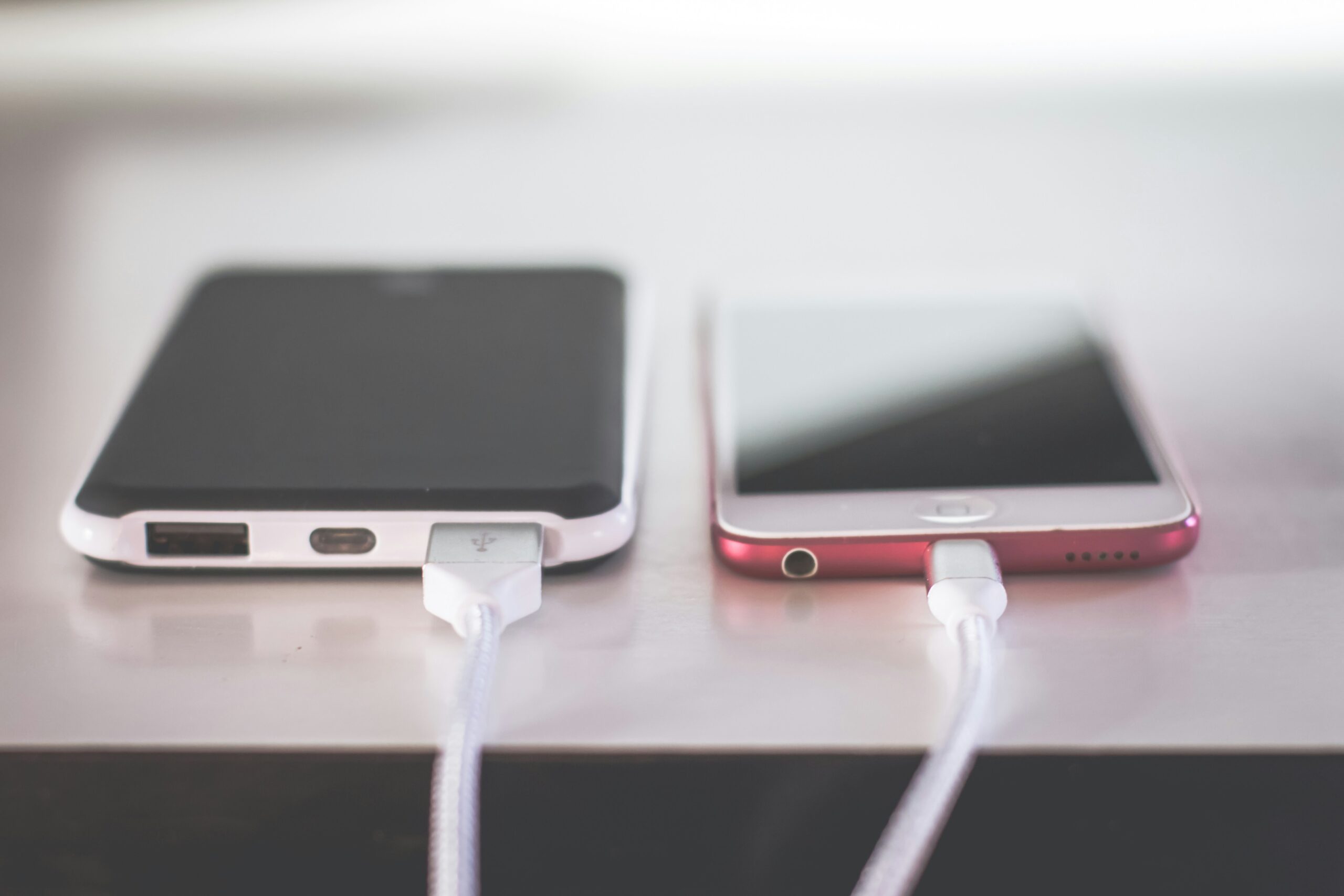
- Avoid charging until the device is completely dry.
Do not use a hair dryer, oven, microwave, or excessive heat, as high temperatures may damage internal components.
If water has entered the phone, professional inspection may be necessary.
6. Close or Remove Problematic Apps
If the touchscreen becomes unresponsive only while using one particular application, the app itself may be causing the issue.
Signs include:
- Freezing inside one app only
- Delayed touch response
- Crashes before the screen locks up
Try:
- Force closing the app
- Updating it
- Clearing its cache (Android)
- Reinstalling it
If the problem disappears afterward, the issue was likely software-related rather than a defective display.
7. Boot Into Safe Mode (Android)
Safe Mode turnesoff other applicationsturnsoff and onSafe Mode 5. Turnoff and on the device Safecode enableturnoff and on the Safe Modeturnoff off Safe Mode Safe Mode. If it doeswork while it’s still onSafe Mode there must be an application you installed isproblem.
This makes Safe Mode one of the most effective diagnostic tools when learning how to fix phone screen unresponsive touch issues without immediately assuming hardware damage.
After confirming the issue, uninstall recently installed or suspicious applications one at a time until the problem disappears.
8. Update the Operating System
Updating the operating system is an important step because how to update Android and iPhone software safely can resolve touchscreen bugs, improve drivers, and enhance overall system stability.
Touchscreen glitches, driver enhancements, and performance system stabilization are common things that software update provide. You will have to go into the setti ng to check software.
Installing the latest supported version may resolve:
- Touchscreen lag
- Random freezing
- Input delays
- Compatibility problems introduced by previous updates
Always back up important data before installing major operating system updates.
9. Free Up Storage and Memory
A device with so little room may not be able to even function correctly even on the operating systems level. As for the glass, there are no particular points being made, just the fact, and a fact it’s not great to have storage that fills so quickly and so much that makes you think everything can just crash.
Improve performance by:
- Deleting unused apps
- Removing duplicate photos
- Clearing downloaded files
- Moving large videos to cloud storage
- Restarting after freeing space
Phones with adequate free storage generally operate more smoothly and respond to touch more consistently.
10. Check for Physical Damage
If none of the software solutions work, inspect the phone carefully.
Look for:
- Cracked glass
- Bent frame
- Black spots under the display
- Flickering screen
- Display discoloration
- Areas that never respond to touch
In some cases, the screen appears undamaged even though the digitizer beneath it has been damaged by a drop or impact.
If the issue started immediately after dropping the phone, internal hardware damage becomes much more likely.
11. Reset the Device (Last Software Option)
If software corruption is suspected and you have ruled out every other method of fixing the issue, a factory reset could potentially resolve the issues and get your functionality back to normal.
Before resetting:
- Back up photos, contacts, and important files.
- Ensure you know your account credentials.
- Charge the battery sufficiently.
Keep in mind that a factory reset will delete your data, and it should not be attempted if there are less drastic solutions you can try first. If the touchscreen problem persists even after a reset, your hardware has most likely failed.
Conclusion
Dealing with an unresponsive touchscreen can be frustrating, but it does not always mean your phone is permanently damaged. Understanding how to fix phone screen unresponsive touch problems starts with identifying whether the issue is caused by software, accessories, environmental factors, or physical hardware damage.Often such easy steps like rebooting the gadget, cleaning the touch screen, eradicating a poor quality screen protector, updating mobile OS, deleting corrupted mobile apps would repair your screen properly.
Nevertheless if the screen came to life post huge blow, drenching and nothing seemed work you need it to be taken and looked at through certified tech by a certified technician to avoid a significant concern going forth! Update its software often, be judicious with devices, take optimum care to stop it from impact and water, this may decrease its chance of future concerns and help save. By following the methods outlined in this guide, you’ll have a clear understanding of how to fix phone screen unresponsive touch problems and know when a simple fix is enough and when professional repair is necessary.
Frequently Asked Questions
1. Why is my phone screen on but not responding to touch?
The phone screen lights up but can no longer be pressed, which is often caused by program failure, an application freeze, an insufficient system resource of your phone, water entering, screen guard factor, or equipment fault like failure digitizer for other reasons. First attempt and see how to locate the reasons by devicerestart and other basic tips,
2. How do I fix my phone screen if it won’t respond to touch?
If you’re wondering how to fix phone screen unresponsive touch, start by restarting your phone, cleaning the display, removing the screen protector and case, updating the operating system, and checking for software issues. If the problem persists after these steps, professional repair may be required.
3. Can a software update fix an unresponsive touchscreen?
Yes. If the problem is caused by a software glitch or system fault, applying the operating system update could get your touchscreen to work again.If the problem is caused by damaged hardware, software fixes won’t resolve it.
4. Does a cracked screen always cause touch problems?
Not necessarily. Some cracked screens continue to function normally, while others damage the touchscreen digitizer underneath the glass, leading to dead zones, delayed input, or a completely unresponsive display.
5. Can a screen protector make my phone less responsive?
Yes. A poor-quality, damaged, or incorrectly installed screen protector can reduce touch sensitivity or interfere with gesture recognition. Removing it temporarily is an easy way to determine whether it’s causing the problem.
6. When should I replace my phone screen instead of troubleshooting it?
If the screen is cracked, or if the touchscreen is not working due to a heavy fall, liquid damage, a section of the display doesn’t respond to touch or flickers. If you have persistent discoloration on the screen, or if touching continues to pose a problem after the device is reset.
7. How can I prevent touchscreen problems in the future?
Protect your mobile and prevent any issues and damage by following the guide; invest in screen guards and mobile cover, make sure that you screen is clean and dry from now onward to avoid from any problem and take care not put any such environment that have a harmful range of temperature, update your software from timely to time as these often fixes and enhance the quality of touchscreen.