If you have an NVIDIA graphics card, knowing how to update NVIDIA driver properly can be the difference between smooth gaming and constant crashes. It can be quite challenging to update the drivers due to several reasons, such as fear of bricking the device, encountering the dreaded black screen, and facing issues caused by incompatible .exe files. Most contemporary applications and games require updated drivers to leverage the full power of your GPU. This article will explain all the viable options for updating your NVIDIA graphics card driver.
It will also highlight the instances where one option may be better than the other and provide you with all the tips and tricks I wish someone had shared with me before diving into the complex world of GPU management. If you want to keep your entire PC ecosystem running optimally, you can explore our regular publishing schedule covering various troubleshooting walkthroughs and tech guides.
Why This Topic Matters More Than You Think
The drivers from NVIDIA deserve a special place since they act as a mediator between computer hardware and the operating system (Windows or Linux). In case of their improper functioning, issues with video performance are usually noticeable on the computer screen. The most common problems include poor frame generation, graphical glitches, and inability to launch applications.
Firstly, the performance of video cards in various games, design software, and other graphics-intensive programs directly depends on the drivers. If the system software is not up to date, any modern game will experience a significant drop in frame rates and graphic glitches. Moreover, if the drivers are not updated, video cards may not support the latest applications and video editing software.
Secondly, the stability of the system also relies heavily on proper drivers. Most common issues with blue screens, black screens after booting up the computer, and freezing of the monitor during gameplay are often resolved in the newest drivers. Although the updates are not usually highlighted in the announcements, resolving these issues is critical for maintaining the system’s stability.
Lastly, the security and compatibility of the drivers should not be neglected. Modern drivers include a variety of security improvements that prevent attacks from malicious software. In addition, newer versions of drivers often support the latest operating system updates and additional features from graphics processing units (GPUs).
How NVIDIA Driver Updates Work Today
Before jumping to step-by-step instructions, it helps to understand the main ways NVIDIA expects you to keep drivers updated in 2026:
- The NVIDIA app (replacing GeForce Experience for many users) and GeForce Experience themselves, which automate driver checks and downloads.
- The official NVIDIA Driver Downloads page, where you manually pick your card and OS, then install the driver yourself.
- Windows tools such as Device Manager or Windows Update that sometimes deliver GPU drivers, but usually not the latest gaming-optimized ones.
- On Linux, built-in tools and repositories or manual installation of the driver metapackage and kernel modules.
A clean process usually starts with identifying your GPU model and current driver version, then choosing the update method based on your comfort level and how much control you want.
Step 1: Identify Your NVIDIA GPU and Current Driver Version
Knowledge of what exactly one is using is crucial to avoid the most common mistake – attempting to install drivers for a different GPU family.
The simplest way on Windows is to use the NVIDIA control panel (if available). To access it, one can right‑click on the desktop and navigate to NVIDIA Control Panel . Opening the System Information menu will display the GPU name and driver version. The Display tab on the right lists the GPU in the items list and the driver version currently in use next to it.
If the NVIDIA control panel is unavailable, the driver can be installed via the Microsoft Store or by using the Device Manager . Display adapters tab will list the NVIDIA GPU name, while the properties window for it will list the driver version currently in use. This version can be compared to the ones listed on the NVIDIA website.
The process is similar for Linux, but it is more involved since the system does not have a built‑in way to query the NVIDIA driver repository. According to the official Ubuntu documentation , the user must determine what driver series is in use and cross‑reference it with the relevant driver metapackage and kernel modules. On the server or workstation of a user, there are likely to be tools available within the distribution to detect what NVIDIA packages and versions are installed.
Now that one knows the GPU name and the driver version, it is possible to update the drivers.
Step 2: Update Using the NVIDIA App or GeForce Experience
For most Windows users, the easiest way to update their system in 2026 is to rely on the convenience of the NVIDIA app or GeForce Experience. This program automatically detects which graphics card is installed on the user’s PC, finds the required drivers, downloads and installs them, and guides the user through the process.
First, the application needs to be downloaded from the official NVIDIA website and installed on the user’s computer. After launching the utility, the user will have to log in to their NVIDIA account or register a new one. On the app’s main screen, there will be a Drivers tab that indicates the currently installed driver version and whether there are newer versions available. Next, the user will initiate the search for updated drivers and select the option to download and install the newest drivers.
When choosing the installation method, the user will have to decide between an express and a customized update. The former is recommended for most users as it allows to update the graphics card drivers without having to deal with any customization and settings. The customized update, in its turn, is intended for more experienced users who want to tweak the graphic settings or remove the undesirable elements. Overall, updating drivers through this method is often the best option as it minimizes the risks of making a mistake and having to deal with the hassle of the manual search for updates. For most users, it is much easier to rely on the recommended set of actions suggested by the app than to try and find the required drivers manually or customize their update in accordance with their specific needs.
Step 3: Update Directly from the NVIDIA Website (Manual Method)
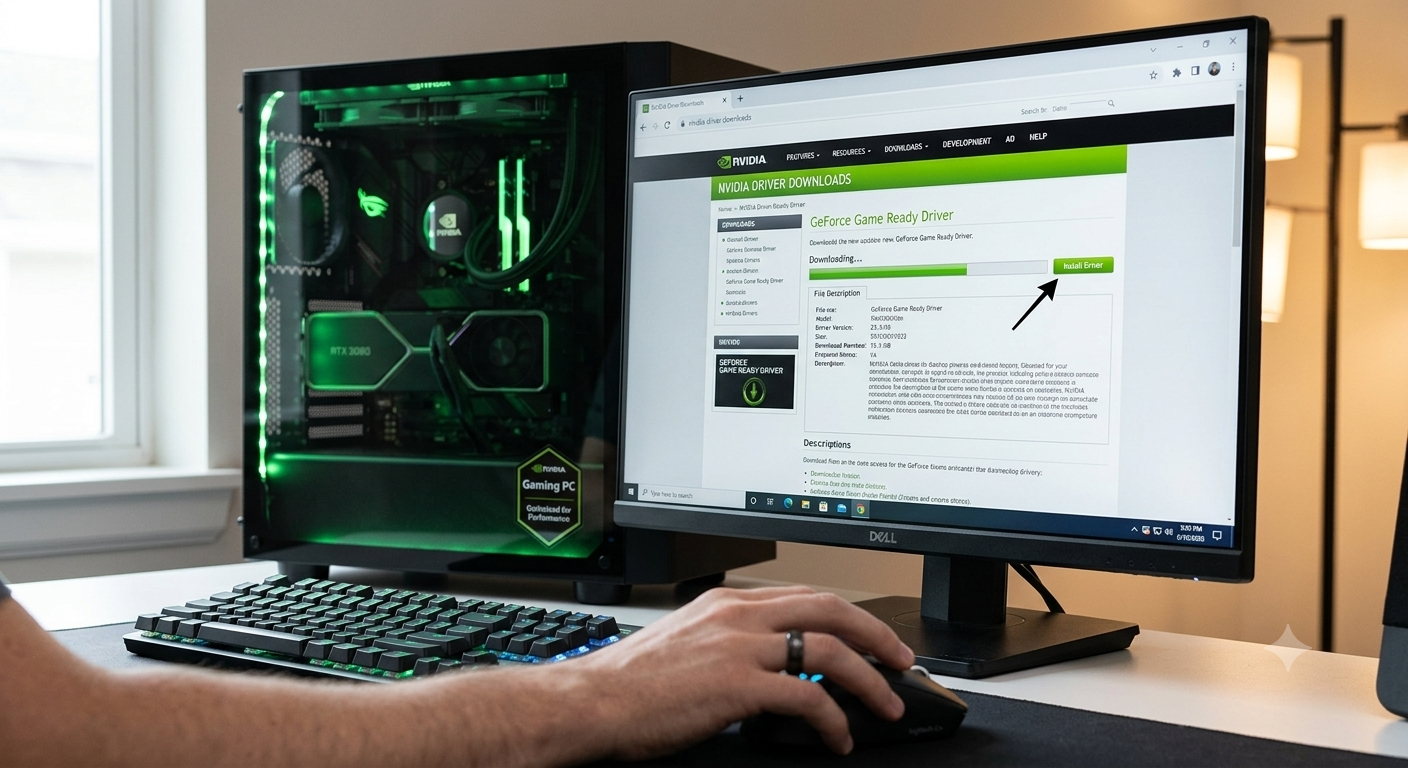
If you want to update your driver manually from the official website, rather than using the recommended tool, you can do that as well. The NVIDIA website will ask you to input the series, model, and OS of your GPU, and output the necessary file for you to download.
In this method, you also need to enter your data or allow the site to detect it automatically and press Search. After that, you will see the version and date of the latest driver. If it is different from the one currently in use, which should be the case if everything is up to date, you will have to download the file. Once it is ready, you can install the driver using the NVIDIA installation tool, which will be similar to the graphical one you used when installing the application. You will also have an option to perform an express or a custom setup.
This manual route is particularly useful in a few scenarios:
- You want a specific driver branch (for example, long-term stable rather than the latest game-ready release)
- You’re installing drivers on a machine without internet access, so you download the file elsewhere and copy it over.
- You’ve removed previous NVIDIA software and want to start fresh with a clean driver installation.
Because you’re in charge of the exact version you install, this method also plays well with troubleshooting, where you might temporarily revert to an earlier, stable driver if a new one introduces problems for your particular workflow.
Step 4: Use Device Manager or Windows Update (When It Makes Sense)
Windows OS has built-in tools for hardware driver updates. In Device Manager, you can update your NVIDIA GPU through the Display adapters tab by either letting the system find the necessary files on its own or by providing the .inf file’s location directly. Windows Update can install some drivers independently under rare circumstances. Your system will notify you if any driver software requires an update in Settings > Update & Security > Windows Update. If you have disabled automatic updates in NVIDIA’s software, it might still offer to update your graphics card through the system’s standard OS update tool.
The catch is that you might be getting drivers that are not up to date in comparison with NVIDIA’s official releases. This approach’s reliability depends on how much the tool can keep up with the latest revisions. As such, Windows Update and Device Manager can serve as convenient alternatives for driver installations that only partially support the newest programs. For complete step-by-step instructions on managing your operating system updates safely, you can consult official Windows support resources.
In conclusion, Device Manager and Windows Update do not update NVIDIA GPU drivers on a regular schedule. They usually have older versions of software compared to the company’s official releases. In some cases, the drivers might not support the latest graphic cards’ technologies. Therefore, it is best to use these methods as supplements or when a working driver is needed immediately, such as after a system failure.
Step 5: Updating NVIDIA Drivers on Linux
On a Linux system, the process of updating NVIDIA drivers differs compared to Windows because instead of running an installer file provided by the vendor, you have to rely on your distribution’s package management system or install the drivers manually by compiling modules. The former method is easiest because you simply have to select the matching metapackage for your GPU series and install it alongside the necessary kernel modules. For example, the Ubuntu server guide recommends installing the necessary modules for the running kernel and then selecting the latest driver metapackage for your GPU, starting with the nvidia-driver-XXX variety.
The driver can either be installed from the command line or from the graphical interface if your distribution provides such tools. Furthermore, when a driver is installed, it is automatically matched to the kernel module and series, whereas the wrong version would result in either the system being unable to boot or a fallback to a basic driver without all the performance benefits. It is possible to manually compile the drivers from a .run file downloaded from NVIDIA’s website, but it is no longer recommended because most of the recent Linux distributions handle updates and driver installations for you.
Case Study: From Stuttery Gameplay to Stable Performance
Consider a gamer running a mid-range NVIDIA GPU who notices stutters and occasional crashes when launching a new AAA title. They’ve never updated their driver since building the PC. After checking their version through the NVIDIA Control Panel, they discover they are several major releases behind the current game-ready driver.
They decide to install the NVIDIA app, which shows a recommended update tailored for the new game. After performing an express installation and restarting, the game runs more smoothly, and the crashes disappear. Behind the scenes, the new driver includes optimizations and bug fixes specific to that title, plus improvements to how the GPU handles shader compilation and memory management.
This type of scenario is common and illustrates why learning how to update NVIDIA driver correctly is not just “good hygiene” but a practical performance upgrade that doesn’t cost anything.
Common Mistakes When Updating NVIDIA Drivers
Although the problem was complicated, its typical solution is not.
One of the mistakes that people often make is to install drivers from the third-party sources because they can provide outdated, modified, or even malicious software. If possible, always use the official NVIDIA website, NVIDIA application or repositories for your Linux distribution.
Another mistake is to attempt to perform partial installations. Some people try to manually delete certain components of NVIDIA software before installing another version. It causes more issues than it solves, and you should always prefer the “express” mode or the option to install the drivers without any changes.
Moreover, some people try to rely solely on Windows Update, believing that no action is required to update their NVIDIA drivers. They are wrong because Windows Update only receives the latest updates from NVIDIA. In most cases, it will have older versions that may not support the latest games or technologies. If you want to ensure that you have the latest NVIDIA drivers, you should use the official utility or website, not the Microsoft Store. On Linux, it is also a common mistake to attempt to manually install drivers and attempt to update them when the kernel changes. It is better to use the recommended method for your distribution, which would avoid most issues, rather than manage everything yourself.
Expert Tips for Smooth NVIDIA Driver Updates
Experts managing multi-systems or hardcore gaming PC’s have developed smarter behaviors around driver updates than just blindly clicking update.
They often review release notes for major version upgrades ahead of time to understand what has changed. This is especially important for people managing drivers as part of their job, as NVIDIA’s driver pages often note which games have been added, which bugs fixed, or known issues. In short, it can help determine whether a particular update is worth doing right away or if it can wait until the next minor update rolls around.
System restore points/backups can be taken on windows prior to driver updates. This is a good idea because even though most modern driver installers are reliable, it’s easy enough to undo if something goes wrong. Especially if the user has to do an update ahead of an important streaming session, game, or work-related deadline; in such cases, updating a few days early and doing a thorough testing phase is probably a better idea than updating minutes before.
And last but not least,
if something does go wrong, remember that you can always roll back to a previous driver version.
This is especially useful if you discover the update to be problematic for a certain game or application. Note that NVIDIA typically keeps older driver versions available for download, meaning that it is possible to manually download an older driver and install it using the customize tab.
Troubleshooting Common Driver Update Problems
Even with the right procedures, there are still possible errors on computers with old graphic cards, multiple GPU, or malfunctioning systems.
If you experience an installer failure or black screen when booting up after installation, reboot the PC and see if Windows will revert back to the basic display driver or not. Chances are that running the official installer once more as a fresh install will fix the issue, as well as the absence of the NVIDIA control panel after booting up in Windows. If you find yourself unable to play certain games or run applications after an update, try looking for the latest driver version or the previous one that worked on your PC.
The website for NVIDIA has an option for downloading older versions of their drivers, which you can use to test for conflicts. If you find that the updated driver worked, you can wait for a new driver or look for other problems causing the errors, such as specific application issues.
In the case that you find yourself with worse performance than before the update, look to see if there were any changes to power or performance options, as some power modes and graphic settings get reverted to default with driver updates. If you know for a fact that the settings are set to optimal or desired performance, try tweaking them in either the NVIDIA control panel or the game itself.
For Linux users, in the event that you have installed the drivers but are greeted with a console, or a black screen and no desktop, you might want to look into reinstalling the appropriate metapackage for your Linux distribution or modules for your kernel, as outlined in the official NVIDIA Linux documentation. It is a good idea to keep that documentation bookmarked for any emergency situations and general troubleshooting.
Quick Comparison: Main Ways to Update NVIDIA Drivers
Below is a simple comparison of the primary methods you can use when deciding how to update NVIDIA driver on your system:
This comparison reflects different priorities. If you value simplicity, the NVIDIA app is usually enough. If you’re chasing specific versions or debugging complex issues, manual downloads and distribution tools will give you the most flexibility.
FAQs About Updating NVIDIA Drivers
1. How often should I update my NVIDIA driver?
If you play new games close to release or run demanding creative workloads, checking for updates every few weeks—or around major game launches—is reasonable. For more casual use, updating when you notice issues or when a major driver is released is usually enough.
2. Is it safe to use GeForce Experience or the NVIDIA app to update drivers?
Yes, these tools are provided by NVIDIA and are designed specifically to handle driver detection, downloads, and installation safely, as long as you install them from official sources.
3. Do I need to uninstall the old driver before installing a new one?
In most cases, you do not. The standard installer overwrites the older driver. You may choose a clean or custom installation when troubleshooting issues, but normal updates can be handled through express installation.
4. Can Windows Update handle my NVIDIA driver updates for me?
Windows Update can provide GPU drivers and is sometimes used for critical updates, but it may not always offer the latest game-ready versions or full feature sets. For gaming and advanced workloads, using NVIDIA’s own tools or manual downloads generally provides better results.
5. What if I installed the wrong driver?
If the driver is incompatible, the installer usually refuses to proceed. If something still breaks, you can boot into safe mode, use system restore if available, or reinstall the correct driver downloaded from NVIDIA’s official site.
Conclusion and Next Steps
Learning how to update NVIDIA driver correctly is one of the easiest ways to unlock better performance, stability, and compatibility from your existing hardware. You can rely on the convenience of the NVIDIA application, enjoy the peace of mind that comes with the manual method, or install the software through Linux distributions. It is paramount to remember that you should rely on the official website to acquire the tools and ensure the integrity of each version you are using to update your graphics card. The best approach should be guided, not random, and should not be driven by the “later” button and the promise of instant results.
The next step would be to update your Windows and games. It is also a good idea to ensure your power and graphics settings are up to par and research ways to tweak your system with the NVIDIA Control Panel for gaming if you are looking to improve your productivity. There are also plenty of articles regarding fixing NVIDIA GPU temperatures if you feel something is off and none of the solutions worked.